
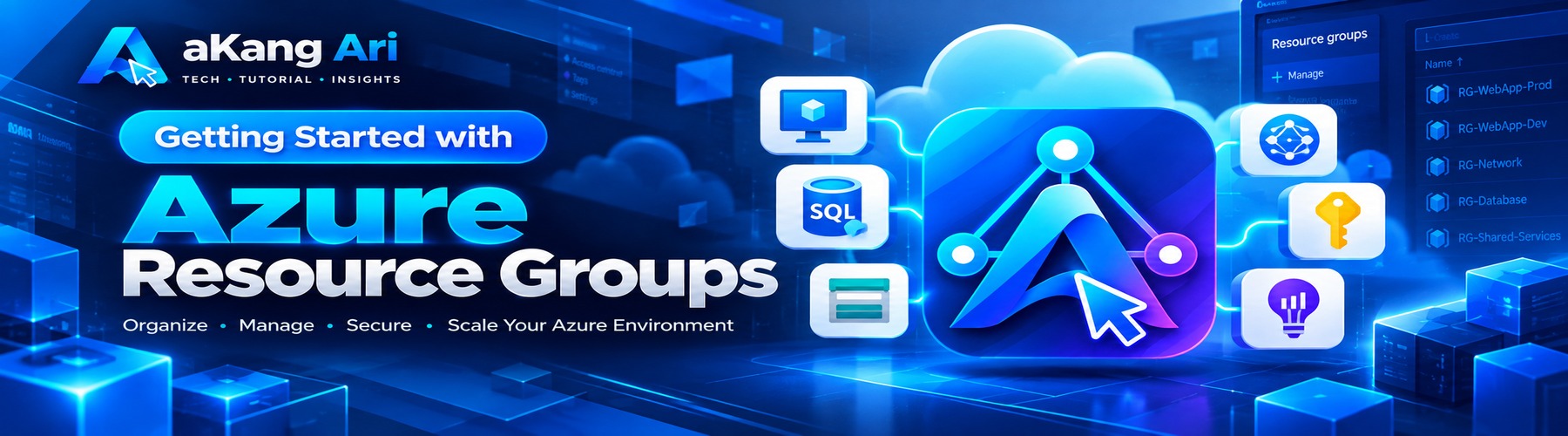
Azure Resource Groups are one of the fundamental building blocks for managing resources in Microsoft Azure. Whether you are deploying a simple virtual machine or building a complex cloud architecture with multiple services, understanding Resource Groups is essential for keeping your Azure environment organized, manageable, and secure.
In this guide, we will explore what Azure Resource Groups are, how they work, how to create one, and the best practices you should follow when designing your Azure environment.
What Is an Azure Resource Group?
An Azure Resource Group is a logical container used to organize and manage related Azure resources.
For example, imagine you are building a web application that consists of:
- Azure App Service
- Azure SQL Database
- Azure Storage Account
- Azure Key Vault
- Application Insights
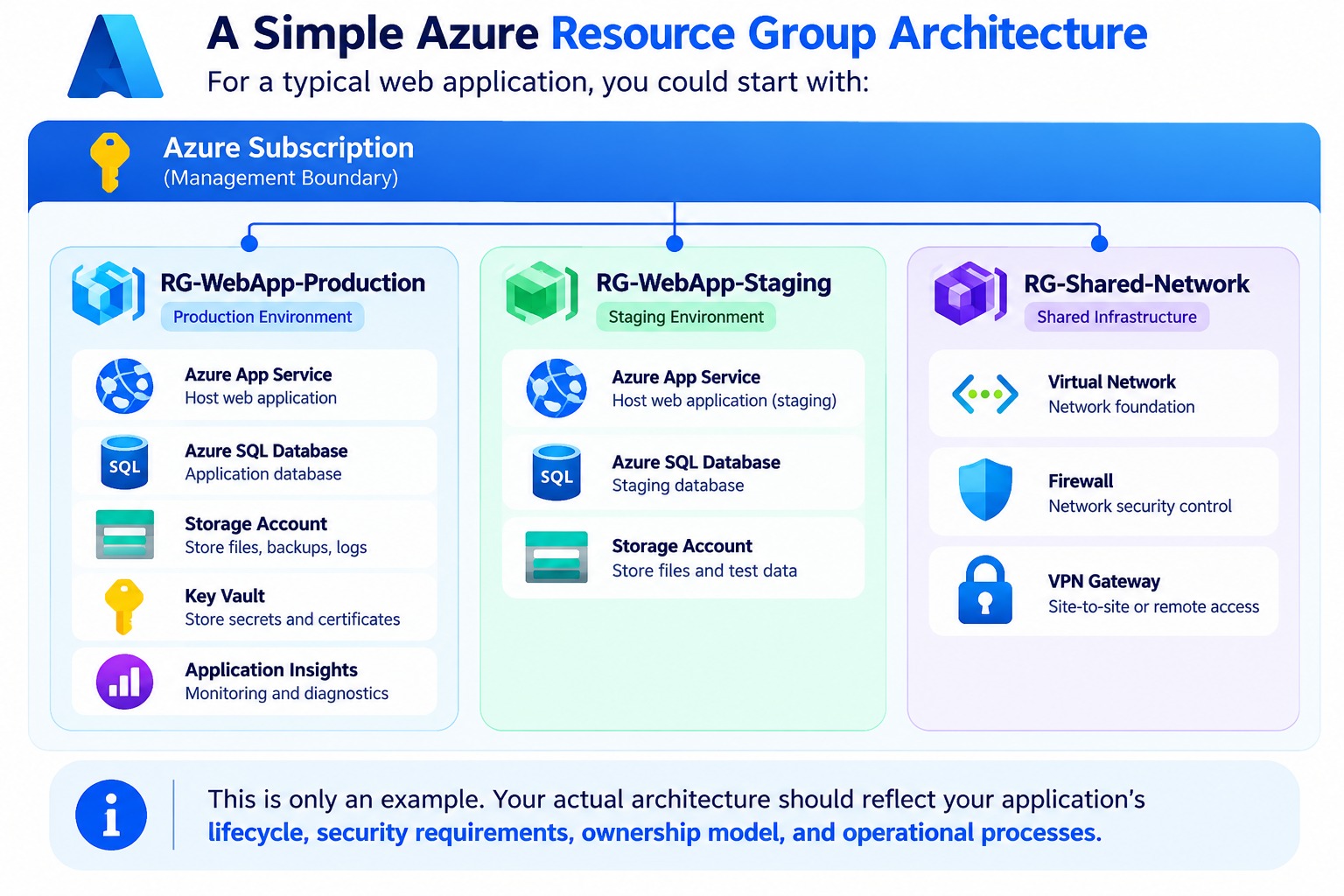
Instead of managing each resource independently, you can place them inside a Resource Group such as:
RG-WebApp-Production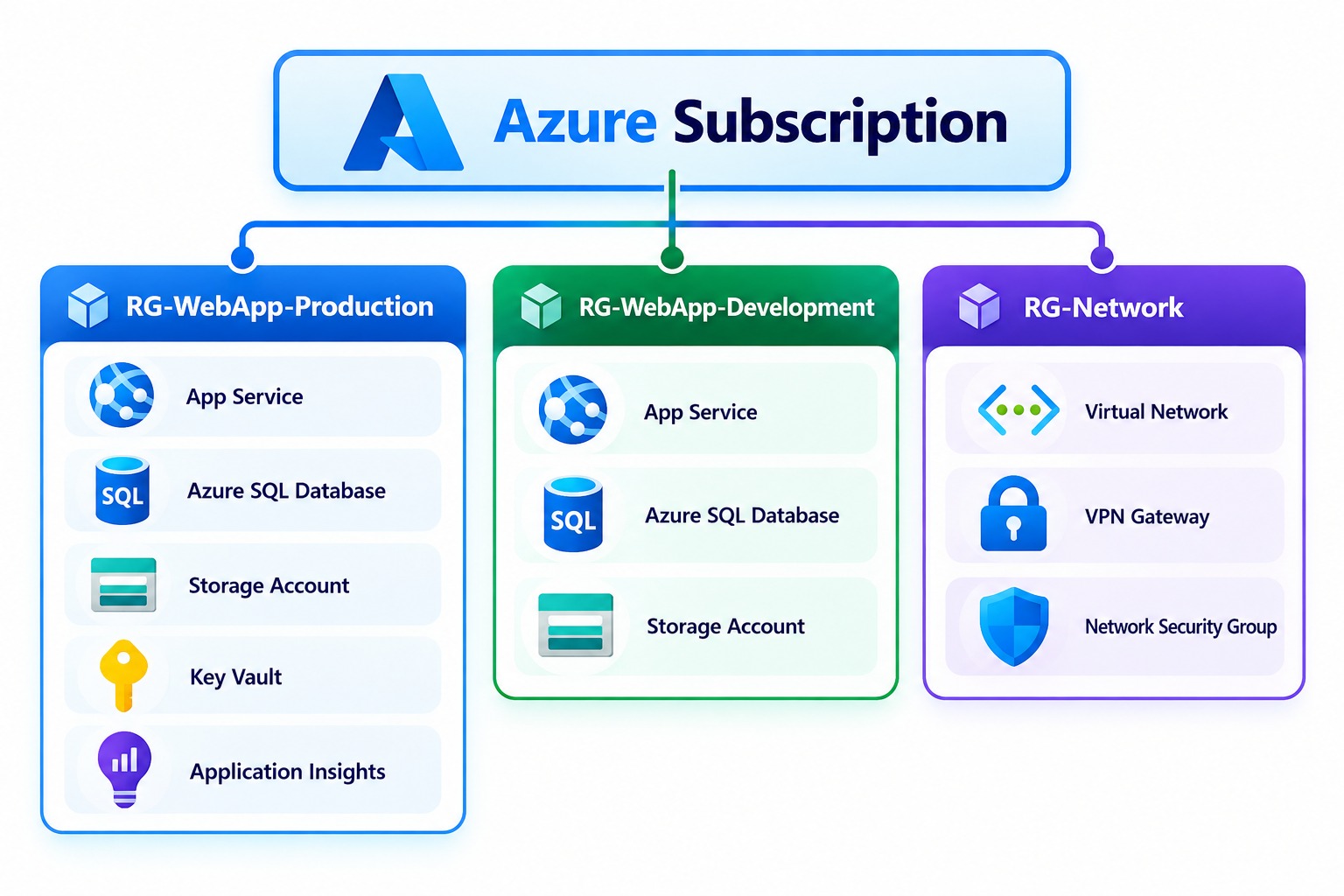
Why Are Resource Groups Important?
Resource Groups provide several important capabilities for Azure administrators, engineers, and developers.
1. Organizing Azure Resources
The most basic purpose of a Resource Group is organization.
Instead of having hundreds of resources mixed together in an Azure subscription, you can group resources according to their application, environment, department, or lifecycle.
For example:
RG-Ecommerce-Production
RG-Ecommerce-Staging
RG-Ecommerce-Development
This makes it easier to understand which resources belong to which environment.
2. Managing Resources as a Group
Azure allows you to perform management operations at the Resource Group level.
For example, you can:
- Deploy resources
- Apply access control
- Assign tags
- Configure policies
- Monitor resources
- Delete resources
This can significantly simplify administration.
One important consideration is that deleting a Resource Group deletes the resources contained within it.
Therefore, Resource Group deletion should be treated as a potentially destructive operation.
Resource Group vs Subscription
A common question from beginners is:
"What is the difference between an Azure Subscription and a Resource Group?"
They serve different purposes.
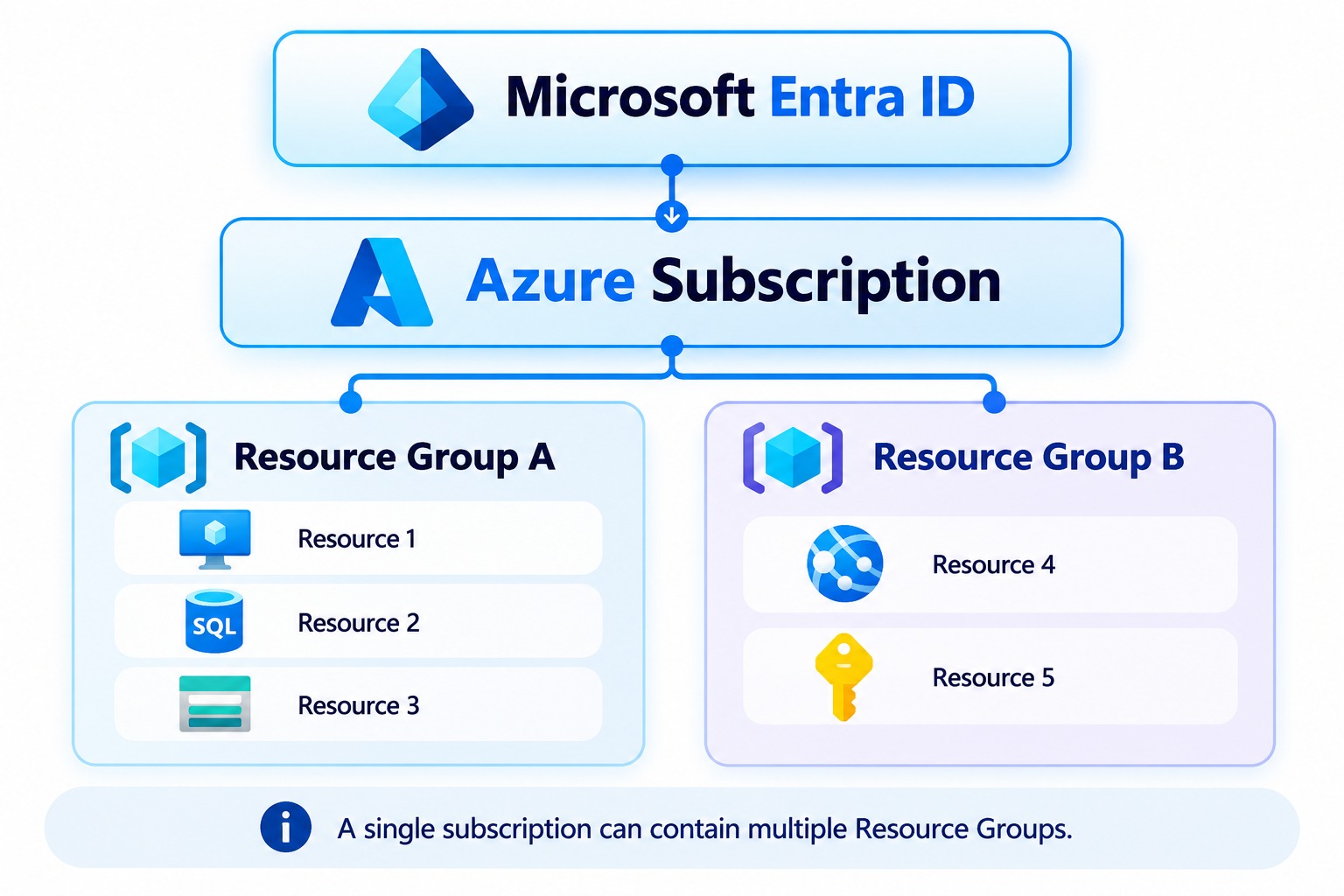
Azure Subscription
A subscription is primarily a boundary for:
- Billing
- Resource quotas
- Access management
- Governance
- Resource organization
How Azure Resource Groups Work
Every Azure resource belongs to exactly one Resource Group.
For example:
Subscription: Production-Subscription

Resource Group: RG-Application-Production

Resources:
├── App Service
├── Azure SQL
├── Storage Account
├── Key Vault
└── Application Insights
However, not every resource necessarily needs to be placed into the same Resource Group.
The correct design depends on how the resources are managed and how their lifecycle is related.
Resource Lifecycle
One of the most important concepts when designing Resource Groups is lifecycle management.
Resources that are created, updated, and deleted together are often good candidates for the same Resource Group.
For example:
E-Commerce Application
│
├── Web App
├── Database
├── Storage
└── Application Insights
If all of these resources belong to the same application and are normally managed together, placing them in one Resource Group can make sense.
On the other hand, shared infrastructure may have a different lifecycle.
For example:
RG-Network
├── Virtual Network
├── VPN Gateway
├── Firewall
└── DNS
These resources may be shared by many applications and therefore may be better managed separately.
Creating an Azure Resource Group
There are several ways to create a Resource Group.
The most common methods are:
- Azure Portal
- Azure CLI
- Azure PowerShell
- Infrastructure as Code
Let's look at each approach.
Creating a Resource Group Using Azure Portal
The Azure Portal provides a graphical interface for creating Resource Groups.
Step 1: Open Azure Portal
Sign in to the Azure Portal.
From the portal, search for:
Resource groupsSelect Resource groups.
Step 2: Select Create
Click:
Create
You will be asked to provide information such as:
- Subscription
- Resource Group name
- Region
For example:
Subscription:
Production Subscription

Resource group:
RG-WebApp-Production

Region:
Southeast Asia
Step 3: Review and Create
Review the configuration and select:
Create
Azure will create the Resource Group.
You can then add resources to it.
Creating a Resource Group with Azure CLI
Azure CLI is useful when you want to automate deployments.
The basic command is:
az group create \
  --name RG-WebApp-Production \
  --location southeastasia
The command creates a Resource Group named:
RG-WebApp-Productionin the Southeast Asia Azure region.
You can verify the Resource Group with:
az group show \
  --name RG-WebApp-Production
To list all Resource Groups in the current subscription:
az group list \
  --output table
Creating a Resource Group with Azure PowerShell
If you prefer PowerShell, you can use:
New-AzResourceGroup `
    -Name "RG-WebApp-Production" `
    -Location "SoutheastAsia"
You can then retrieve the Resource Group:
Get-AzResourceGroup `
    -Name "RG-WebApp-Production"
PowerShell is particularly useful in Microsoft-centric enterprise environments where Azure administration is already integrated with Windows and Microsoft management tools.
Resource Group Naming Strategy
A consistent naming convention becomes increasingly important as your Azure environment grows.
Instead of randomly naming Resource Groups:
mygroup
testgroup
group123
production
consider establishing a standard.
For example:
RG-<Application>-<Environment>Examples:
RG-WebApp-Production
RG-WebApp-Staging
RG-WebApp-Development

RG-ERP-Production
RG-ERP-Staging

RG-Data-Production
RG-Network-Production
You may also incorporate organizational or geographic information when appropriate:
RG-IT-WebApp-Production
RG-IT-WebApp-Development
RG-APAC-Network-Production
The exact naming convention should be standardized within your organization rather than chosen independently by each team.
Resource Groups and Azure Tags
Tags are another important component of Azure resource management.
Tags are key-value pairs that help categorize resources.
For example:
Environment = Production
Department  = IT
Application = ECommerce
Owner       = Infrastructure
CostCenter  = IT-001
Tags can help organizations:
- Identify resource ownership
- Track environments
- Analyze costs
- Support governance
- Filter resources
- Build operational reports
For example:
Resource Group:
RG-WebApp-Production

Tags:
Environment = Production
Application = WebApp
Department = IT
Owner = Infrastructure
A good tagging strategy should be defined together with your naming convention.
Access Control with Resource Groups
Azure Resource Groups can also be used as a scope for Azure role-based access control (Azure RBAC).
For example, suppose a development team should manage resources belonging to the development environment but should not manage production resources.
You could structure the environment like this:
RG-WebApp-Development
RG-WebApp-Staging
RG-WebApp-Production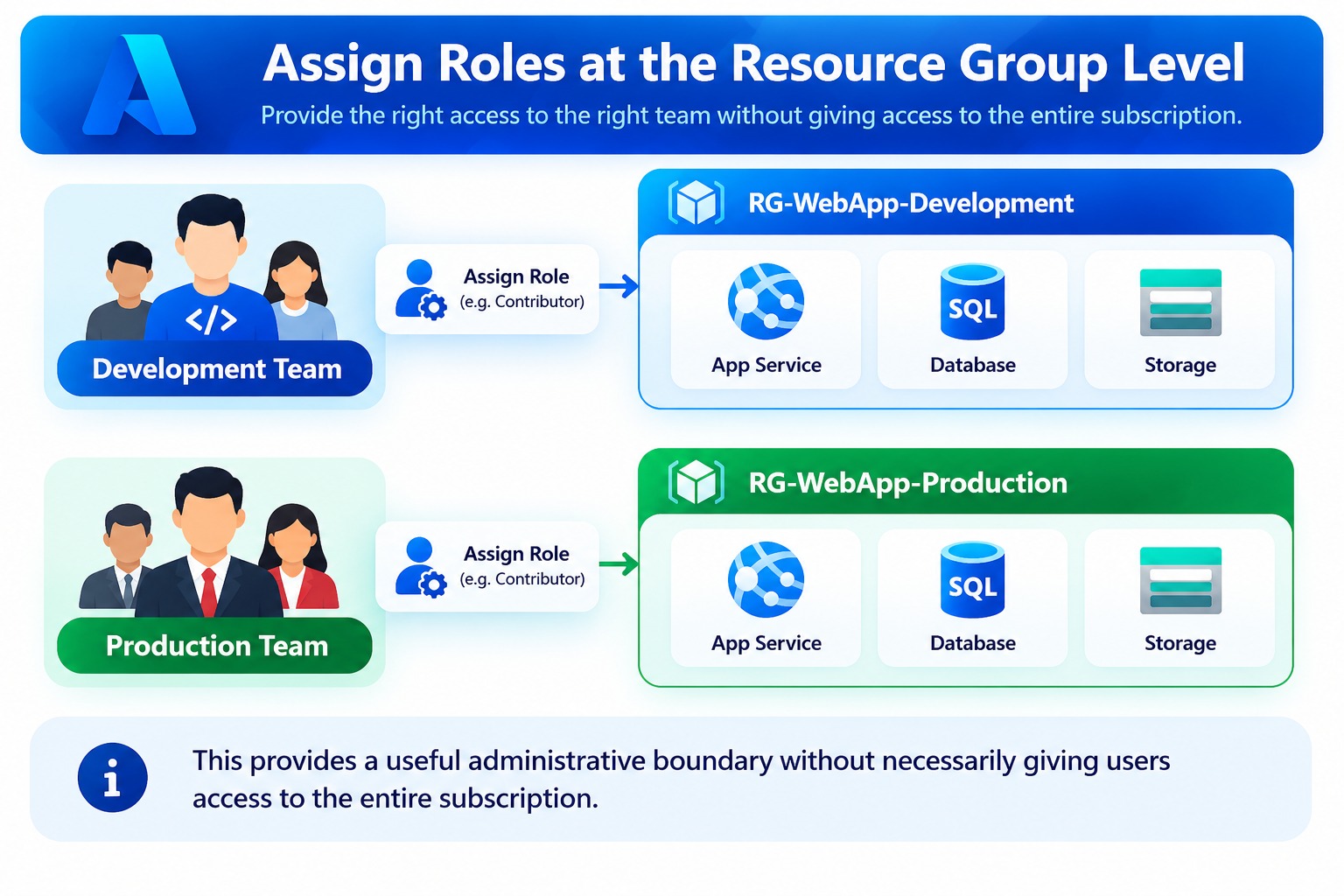
Resource Groups and Azure Policy
Resource Groups can also work together with Azure governance capabilities such as Azure Policy.
For example, an organization may require resources to have specific tags:
Environment
Department
Owner
CostCenter
A policy can be used to enforce or audit those requirements.
This becomes particularly useful in enterprise environments where multiple teams are creating Azure resources.
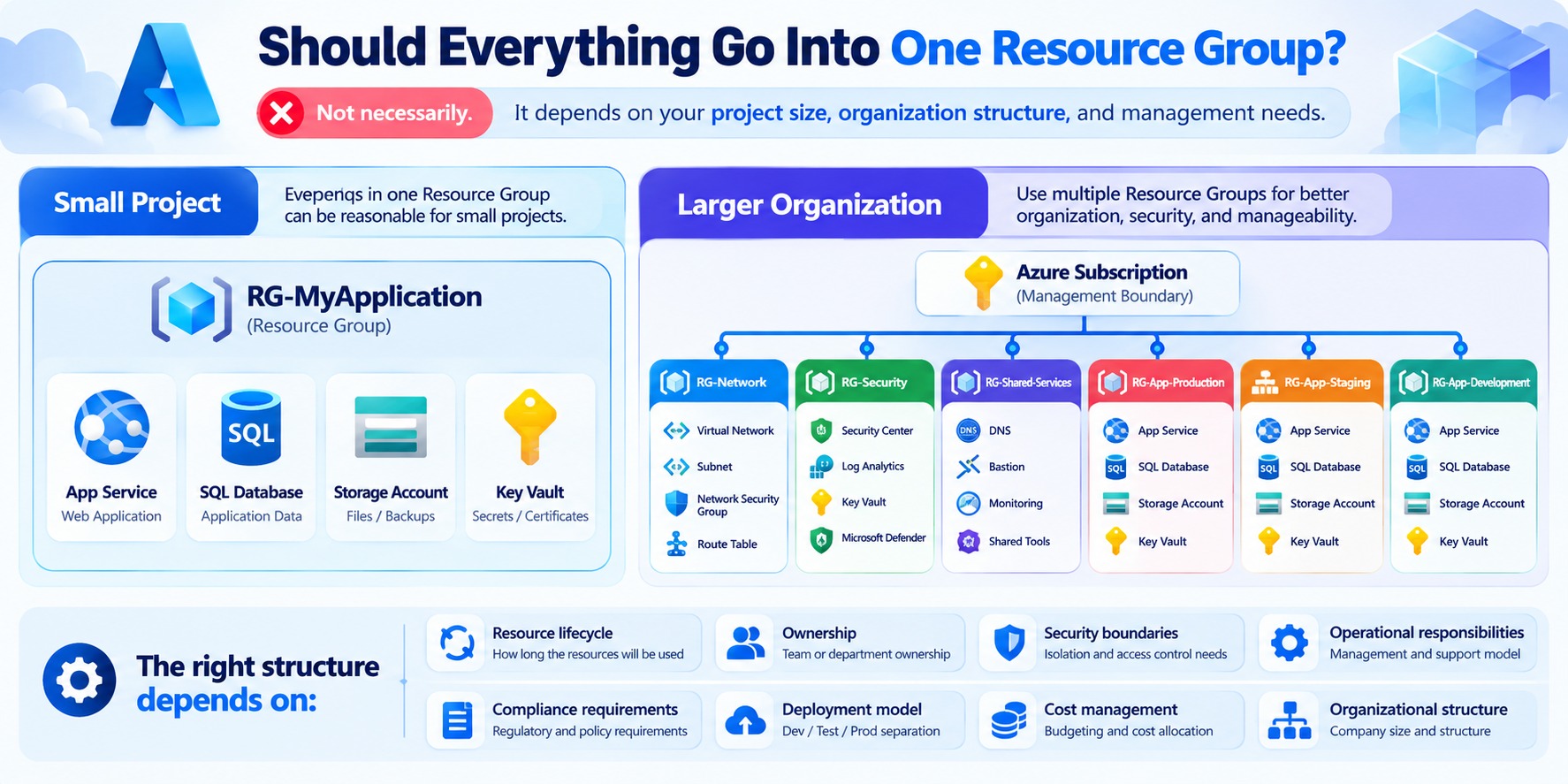
Common Resource Group Design Patterns
Pattern 1: One Application per Resource Group
RG-ECommerce
├── Web App
├── Database
├── Storage
└── Key Vault
This is easy to understand and works well for applications with independent lifecycles.
Pattern 2: Environment-Based Resource Groups
RG-ECommerce-Development
RG-ECommerce-Staging
RG-ECommerce-Production
This approach clearly separates environments.
It can also make access management easier.
Pattern 3: Shared Infrastructure
RG-Shared-Network
RG-Shared-Security
RG-Shared-Monitoring
Shared services can be separated from individual applications.
For example:
RG-Shared-Network
├── Virtual Network
├── Firewall
├── VPN Gateway
└── DNS
Application teams can then consume these shared services.
Common Mistakes to Avoid
Mistake 1: Creating Too Many Resource Groups
Creating a Resource Group for every individual resource can make management unnecessarily complicated.
For example:
RG-App
RG-Database
RG-Storage
RG-KeyVault
RG-AppInsights
RG-Network
This may not be necessary if all resources have the same lifecycle and ownership.
Mistake 2: Ignoring Resource Lifecycle
Don't organize resources only based on resource type.
Instead, consider:
Which resources should be managed, deployed, and retired together?
Lifecycle is often a more useful design principle than simply grouping all databases together or all storage accounts together.
Mistake 3: Inconsistent Naming
Avoid mixing naming conventions:
ProductionApp
prod-web
my-production-group
RG_APP_PROD
Instead, establish a consistent standard.
For example:
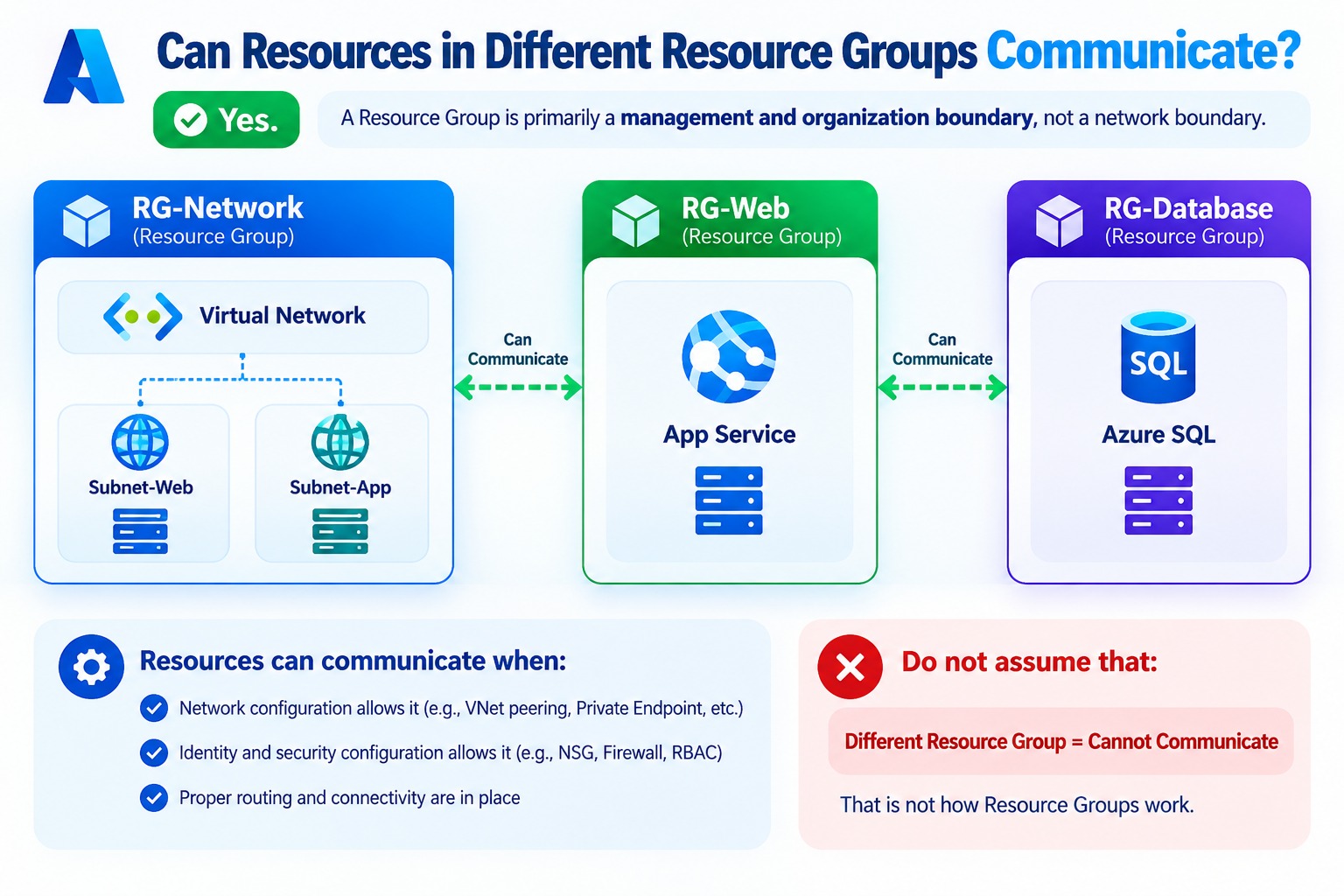
RG-<Application>-<Environment>Mistake 4: Treating Resource Groups as Network Boundaries
Resource Groups don't inherently isolate network traffic.
Network isolation should be designed using Azure networking and security services such as:
- Virtual Networks
- Subnets
- Network Security Groups
- Azure Firewall
- Private Endpoints
- Routing
- Identity and access controls
Mistake 5: Giving Excessive Permissions
Avoid assigning broad permissions when a narrower scope is sufficient.
For example, if a developer only needs access to:
RG-WebApp-Developmentthere may be no reason to grant the same permissions across the entire subscription.
Follow the principle of least privilege.
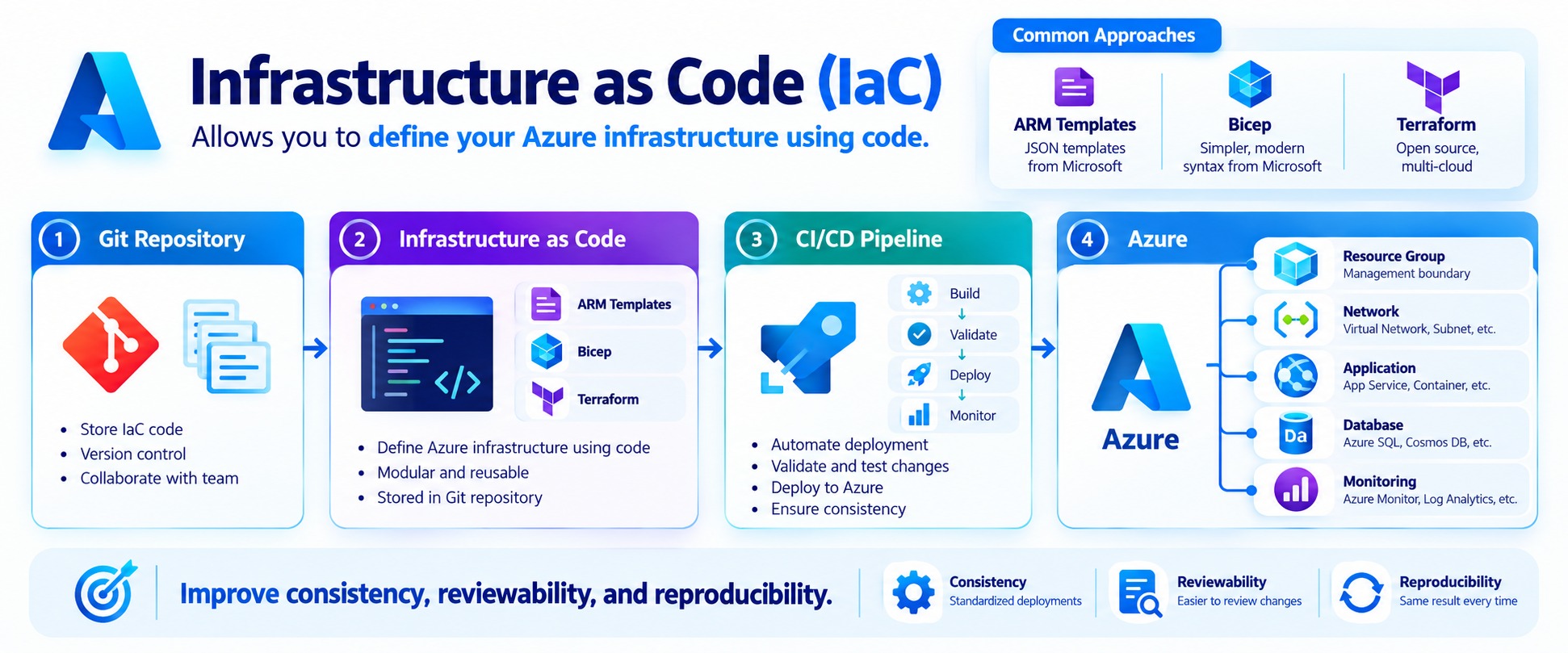
Resource Groups and Infrastructure as Code
For larger environments, manually creating Resource Groups through the Azure Portal may not scale well.
Useful Azure CLI Commands
Here are several commands that are useful when working with Resource Groups.
List Resource Groups
az group list --output tableCreate a Resource Group
az group create \
  --name RG-WebApp-Production \
  --location southeastasia
Show Resource Group Information
az group show \
  --name RG-WebApp-Production
List Resources in a Resource Group
az resource list \
  --resource-group RG-WebApp-Production \
  --output table
Delete a Resource Group
az group delete \
  --name RG-WebApp-Production
Be careful with this command because deleting the Resource Group can remove the resources contained within it.
Best Practices Checklist
Before creating your Azure environment, consider the following checklist:
Define a Resource Group naming convention
Define resource ownership
Identify resource lifecycle
Separate development, staging, and production where appropriate
Define tagging standards
Apply least-privilege access
Use Azure Policy where governance is required
Avoid unnecessary Resource Group fragmentation
Consider shared infrastructure separately
Use Infrastructure as Code for repeatable deployments
Document the architecture
Establish a deletion and recovery process
Final Thoughts
Azure Resource Groups may look like a simple organizational feature, but they become increasingly important as your Azure environment grows.
A well-designed Resource Group strategy can help you organize resources, establish management boundaries, simplify access control, support governance, and make infrastructure easier to operate.
The key principle to remember is:
Group resources according to how they are managed and how they share a lifecycle—not simply according to what type of Azure resource they are.
For a beginner, a practical starting point is to separate environments and applications clearly:
RG-App-Development
RG-App-Staging
RG-App-Production
As your infrastructure grows, you can introduce additional Resource Groups for shared networking, security, monitoring, and other common services.
Once you understand Resource Groups, the next concepts worth learning are Azure subscriptions, Azure RBAC, Azure Policy, Azure Tags, Azure Management Groups, and Infrastructure as Code with Bicep or Terraform. Together, these concepts form the foundation for managing Azure environments at scale.
Frequently Asked Questions
What is an Azure Resource Group?
An Azure Resource Group is a logical container used to manage related Azure resources within an Azure subscription.
Can one Resource Group contain multiple Azure services?
Yes. A Resource Group can contain multiple Azure resources, such as App Services, databases, storage accounts, Key Vaults, and monitoring resources.
Can resources in different Resource Groups communicate?
Yes. Resource Groups are management boundaries rather than network isolation boundaries. Communication depends on the networking and security configuration.
Can a resource belong to multiple Resource Groups?
No. An Azure resource belongs to one Resource Group at a time.
What happens when I delete a Resource Group?
Deleting a Resource Group is a destructive operation because the resources contained in that Resource Group can also be deleted.
Should I create separate Resource Groups for Development and Production?
Separating environments into different Resource Groups is a common design approach because it can simplify access control, management, and lifecycle operations. However, the appropriate structure depends on your organization's architecture and governance requirements.
Is a Resource Group the same as an Azure Subscription?
No. A subscription is a broader management, billing, and quota boundary. Resource Groups are logical containers within a subscription.
Can I move resources between Resource Groups?
Many Azure resources support moving between Resource Groups, but support and requirements vary by resource type. Always check the specific service's move limitations before performing the operation.