

Managing permissions in SharePoint can look simple at first: create a site, add some users, assign access, and you're done.
In a real-world environment, however, SharePoint permissions can quickly become complicated.
As organizations grow, the number of sites, teams, libraries, folders, documents, guest users, and Microsoft 365 groups also increases. Without a clear permission strategy, SharePoint can eventually become difficult to manage, difficult to audit, and vulnerable to accidental data exposure.
The key is not simply to give users access.
The key is to design a permission model that is structured, predictable, auditable, and easy to maintain.
This article explains how to manage SharePoint permissions properly and how to avoid the common mistakes that lead to permission sprawl.
Why SharePoint Permissions Become Complicated
SharePoint provides several layers of access control.
A user may receive permissions through:
- SharePoint Groups
- Microsoft 365 Groups
- Microsoft Entra ID security groups
- Direct permissions
- Sharing links
- Site membership
- Team membership
- Folder-level permissions
- Item-level permissions
The problem starts when these mechanisms are mixed without a clear strategy.
For example:
User
 ├── Member of Microsoft 365 Group
 ├── Member of Entra ID Security Group
 ├── Directly added to SharePoint Site
 ├── Direct permission on Folder A
 └── Received sharing link to Document B
The user may eventually have access to much more information than the administrator originally intended.
This is commonly referred to as permission sprawl.
1. Start With the Principle of Least Privilege
The most important rule for SharePoint permissions is:
Users should have only the level of access they actually need to perform their work.
This is the Principle of Least Privilege.
Instead of giving everyone Full Control or Edit access, define access based on the user's role.
A simple example:
| Role | Typical Permission |
|---|---|
| Site Owner | Full Control |
| Site Member | Edit |
| Site Visitor | Read |
| External Collaborator | Limited / specific access |
| Temporary User | Time-bound access |
The exact permissions should depend on the business requirement.
For example, an employee who only needs to read company policies should not automatically receive Edit permissions.
2. Understand the SharePoint Permission Hierarchy
Before designing a permission model, understand where permissions can be applied.
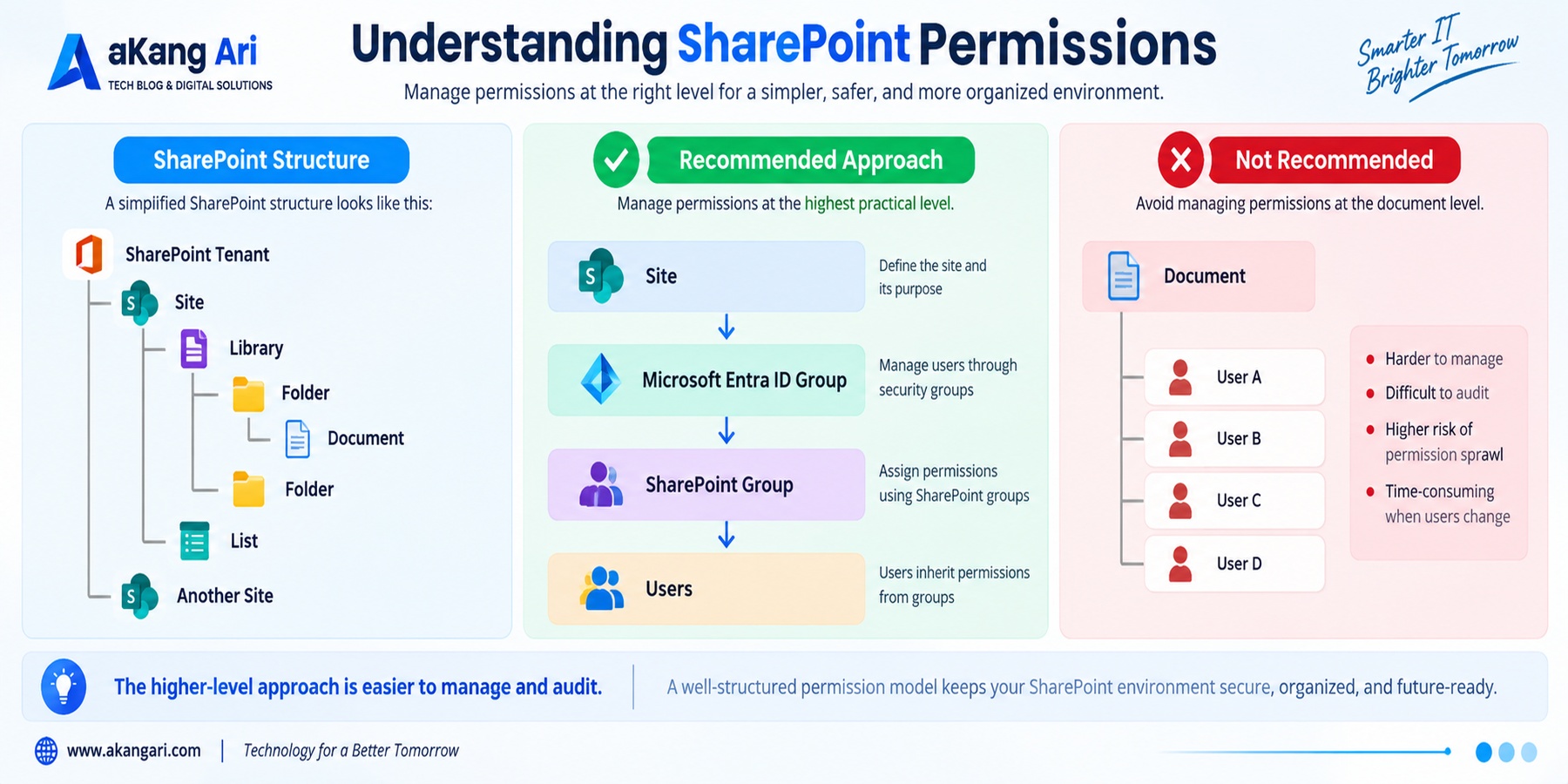
A simplified SharePoint structure looks like this:
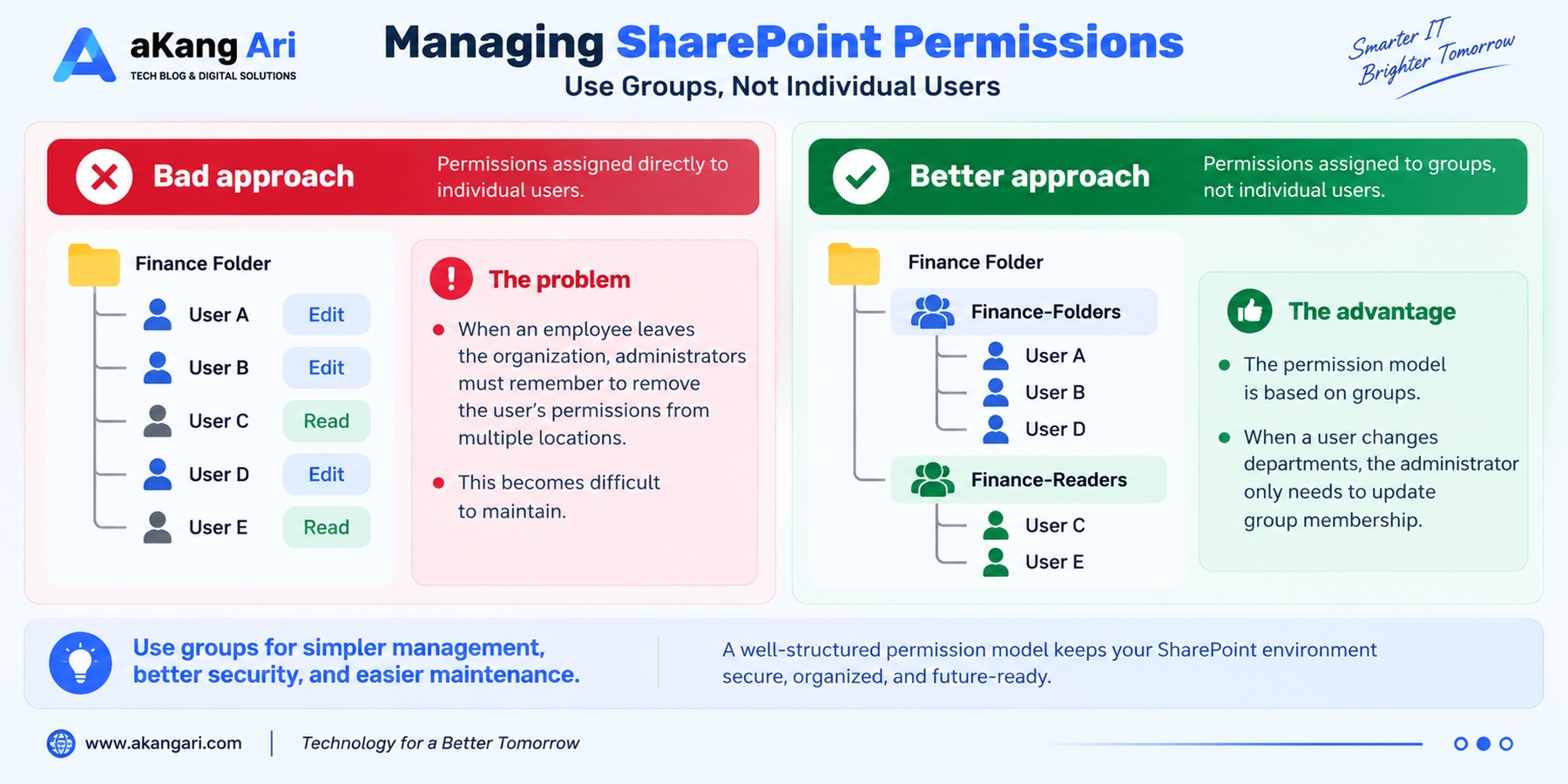
3. Prefer Groups Over Direct User Permissions
One of the most important SharePoint administration practices is:
Assign permissions to groups, not individual users.
4. Use Microsoft Entra ID Groups Strategically
In Microsoft 365 environments, Microsoft Entra ID groups can provide a strong foundation for access management.
For example:
SG-SP-FINANCE-READ
SG-SP-FINANCE-EDIT
SG-SP-HR-READ
SG-SP-HR-EDIT
SG-SP-IT-READ
SG-SP-IT-EDIT
The naming convention should be consistent.
A good naming standard makes administration and troubleshooting much easier.
For example:
SG-SP-[Department]-[AccessLevel]Examples:
SG-SP-FINANCE-READ
SG-SP-FINANCE-EDIT
SG-SP-HR-READ
SG-SP-HR-EDIT
SG-SP-IT-READ
SG-SP-IT-EDIT
For larger organizations, the naming convention can also include environment or application information:
SG-M365-SP-FINANCE-EDIT
SG-M365-SP-HR-READ
The exact naming convention is less important than consistency.
5. Avoid Breaking Permission Inheritance Without a Good Reason
SharePoint uses permission inheritance.
Normally, a child object inherits permissions from its parent.
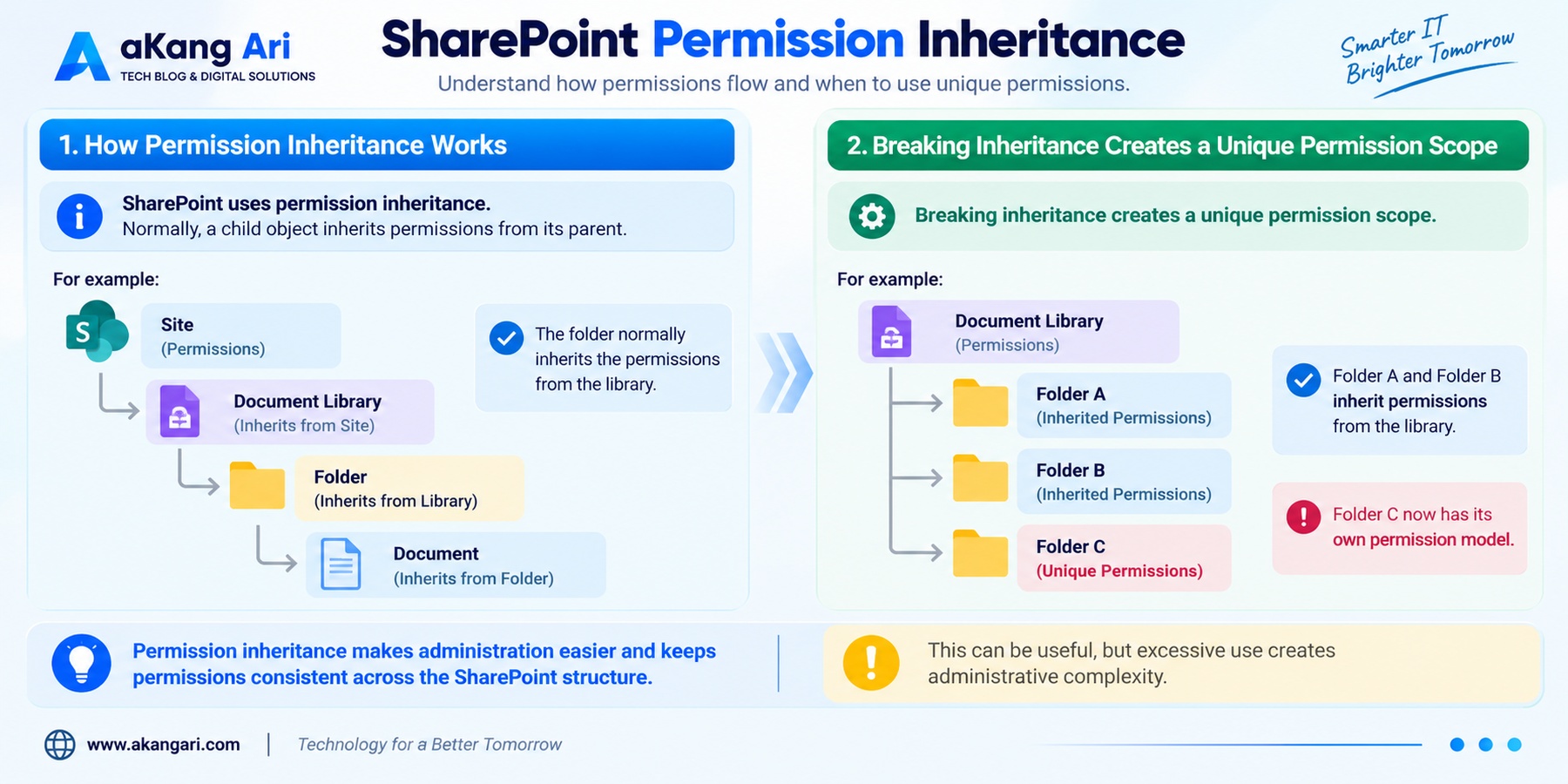
Before breaking inheritance, ask:
- Is there a genuine business requirement?
- Can the information be separated into another library?
- Can a separate site be used instead?
- Can Microsoft 365 or Entra ID groups solve the requirement?
- Will the permission model remain understandable six months from now?
If the answer is unclear, reconsider breaking inheritance.
6. Don't Use Folder Permissions as Your Default Architecture
A common mistake is creating a single document library and then building a complicated security structure using folders.
For example:
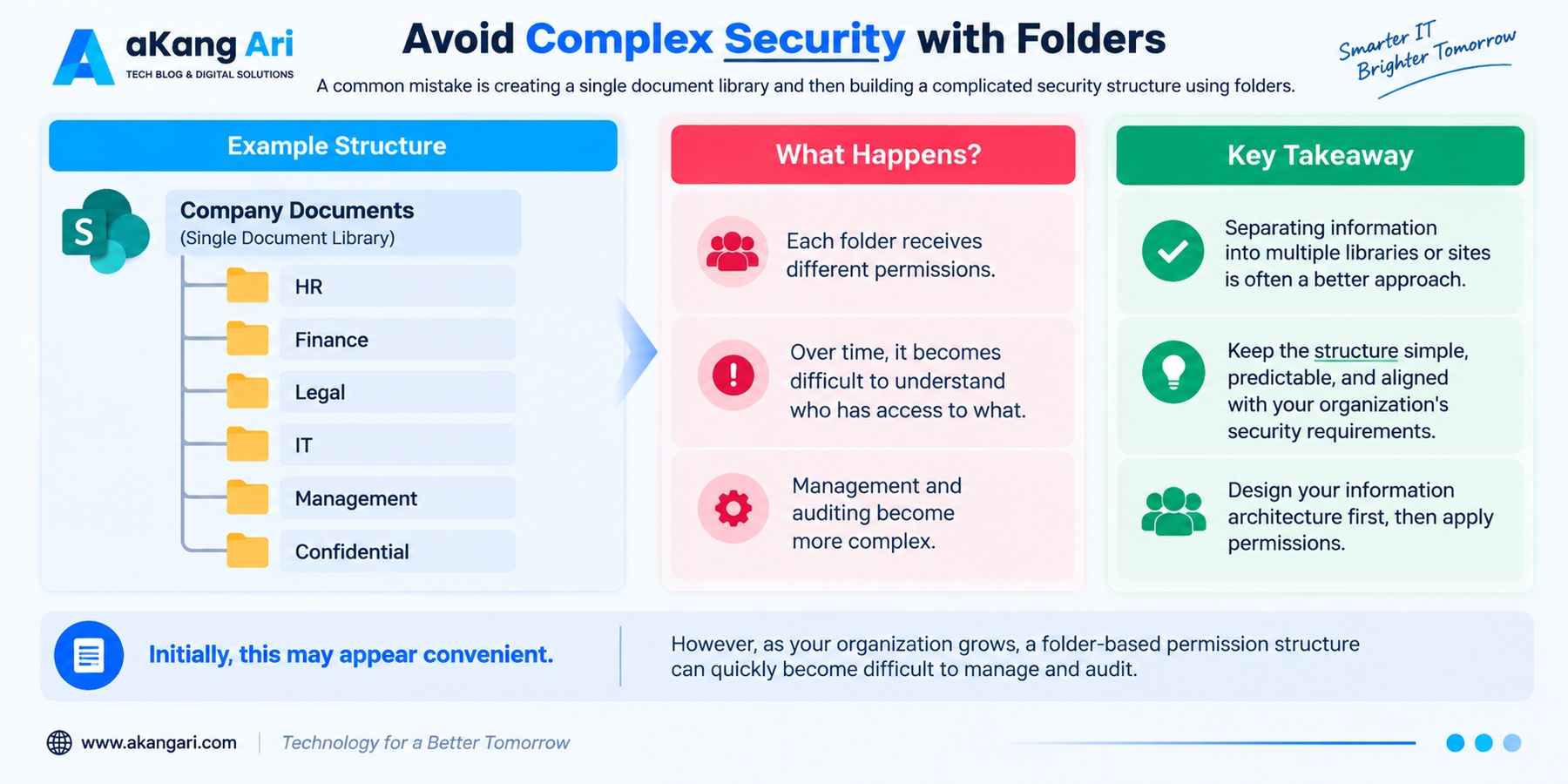
Over time, however, it can become difficult to understand who has access to what.
A better architecture may be:
HR Site
Finance Site
Legal Site
IT Site
Management Site
or separate document libraries where appropriate.
The important concept is:
Security boundaries should generally align with information boundaries.
If two groups of information have fundamentally different security requirements, consider separating them rather than creating increasingly complex folder permissions.
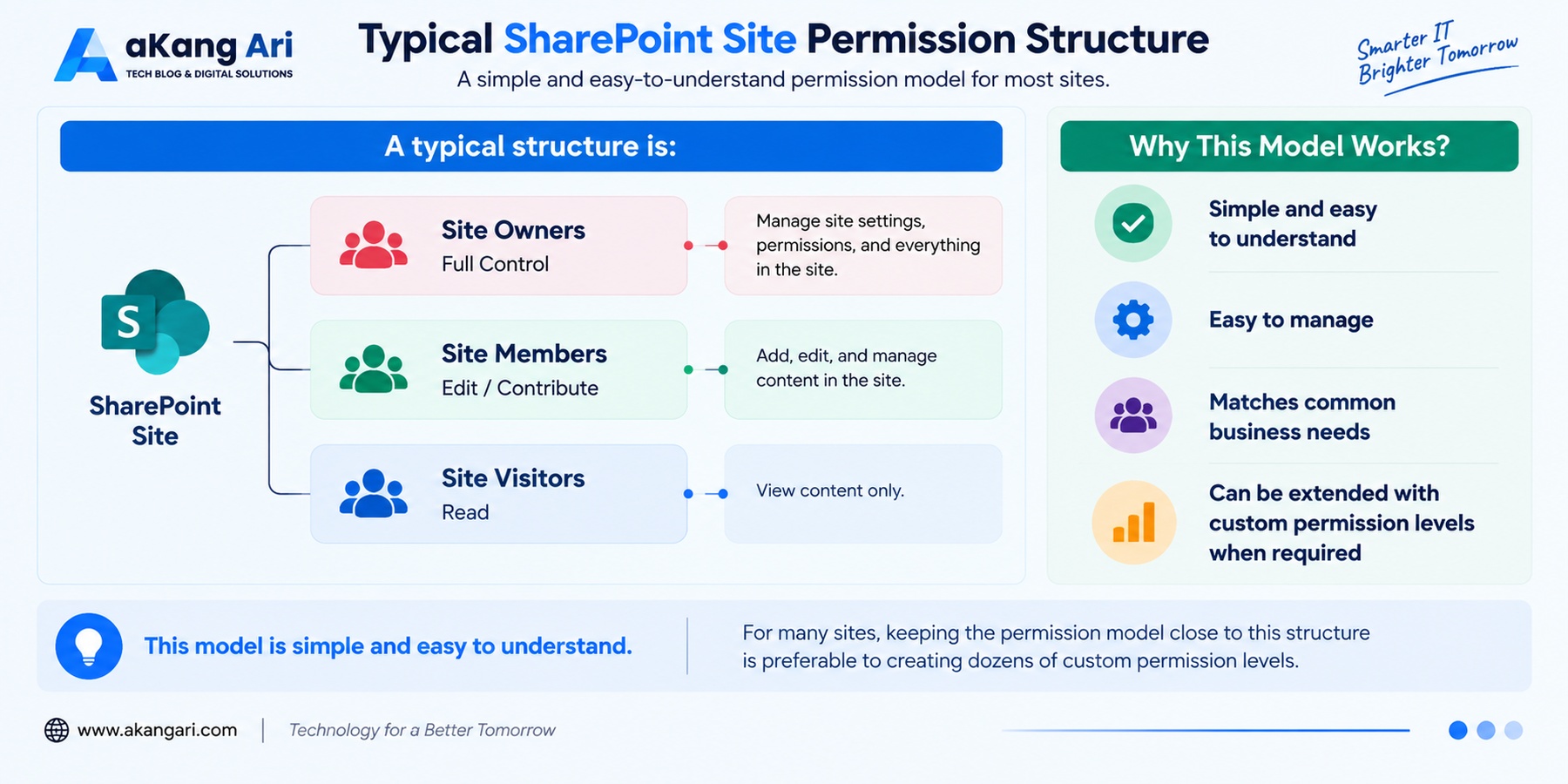
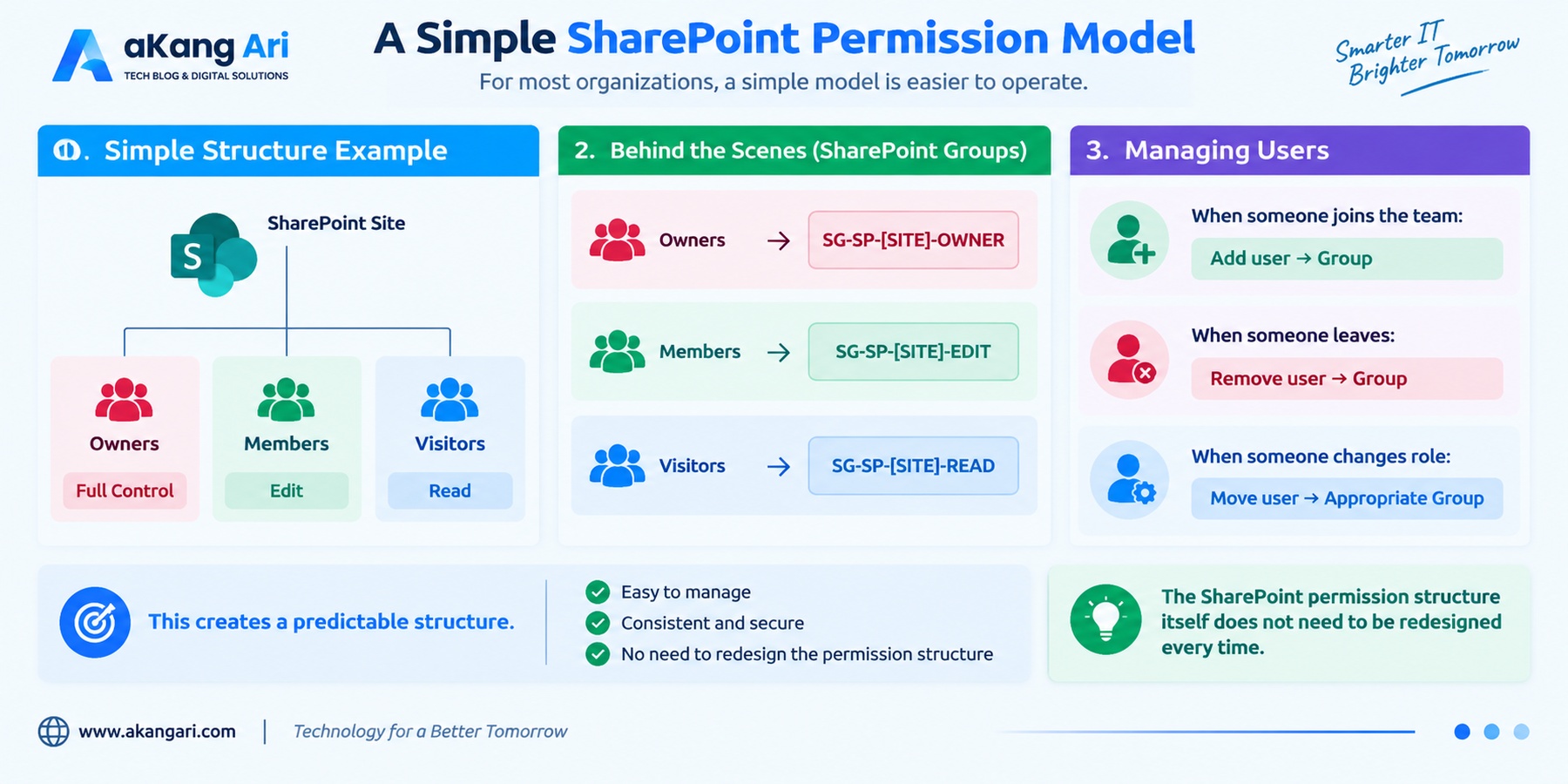
7. Use SharePoint Groups for Site-Level Roles
SharePoint provides standard groups such as:
- Owners
- Members
- Visitors
These groups represent common site roles.
8. Be Careful With "Everyone" and Broad Access
Broad permission assignments should be treated carefully.
Examples include:
Everyone
Everyone except external users
All Employees
All Authenticated Users
These groups can be useful in certain scenarios.
However, they can also create unintended access.
Before assigning broad permissions, determine:
- What information is being exposed?
- Who belongs to the group?
- Are external users included?
- Does the information contain confidential data?
- Is the access required for business operations?
- Is the access still appropriate six months from now?
A broad group should never be used simply because it is convenient.
9. Treat External Sharing as a Separate Security Concern
External sharing is one of the areas that deserves additional attention.
A SharePoint site may contain internal company information while also allowing external collaboration.
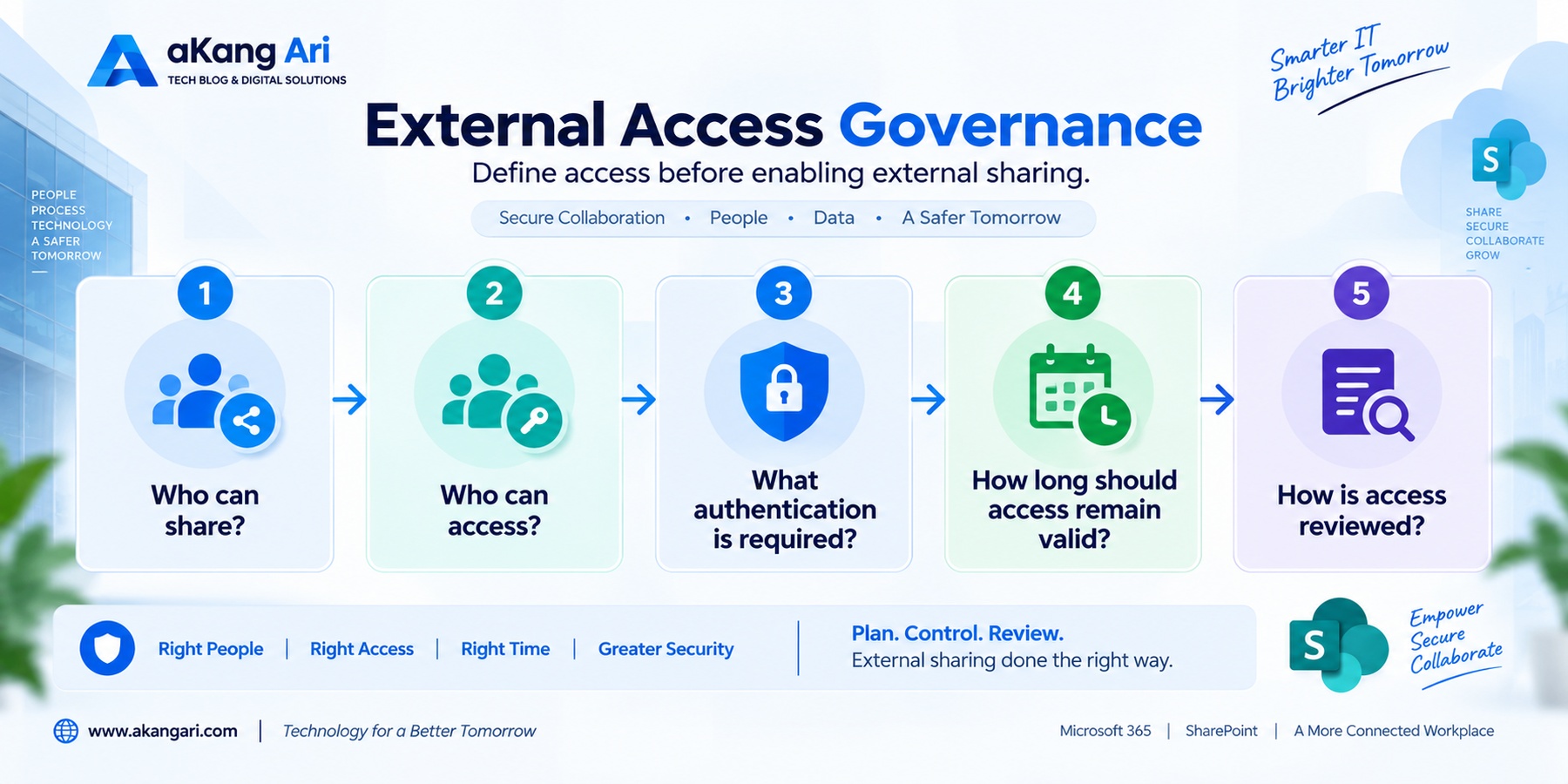
Organizations should establish clear policies around:
- Guest access
- Sharing links
- Anonymous or unauthenticated sharing where available
- Guest expiration
- External domain restrictions
- Access reviews
- Sensitive information
The goal is not necessarily to eliminate external sharing.
The goal is to make external sharing intentional and controlled.
10. Understand Sharing Links
Sharing links can make collaboration extremely convenient.
However, they can also make permission troubleshooting difficult.
A user may say:
"I don't have access to this folder."
But another user may have received a sharing link that grants additional access.
Therefore, when investigating permissions, don't only check:
Site Members
Site Visitors
Also investigate:
Direct permissions
Sharing links
Group membership
Inherited permissions
Unique permissions
External sharing
Permission troubleshooting should always consider the complete access path.
11. Create a Permission Matrix
A permission matrix is one of the simplest ways to document your SharePoint security model.
Example:
| Resource | Owner | Editor | Viewer | External |
|---|---|---|---|---|
| HR Documents | Full Control | Edit | Read | No |
| Finance Documents | Full Control | Edit | Read | No |
| Marketing Documents | Full Control | Edit | Read | Limited |
| Public Resources | Full Control | Edit | Read | Read |
This document becomes extremely useful during:
- Security reviews
- Internal audits
- Employee onboarding
- Employee transfers
- Employee offboarding
- Permission troubleshooting
- Compliance reviews
12. Document Who Owns Each SharePoint Site
Every SharePoint site should have clearly defined owners.
For example:
Site: Finance Portal

Business Owner:
Finance Manager

Technical Owner:
IT / M365 Administrator

Primary Group:
SG-SP-FINANCE

Backup Owner:
Finance Assistant Manager
This prevents a common problem:
A SharePoint site exists, but nobody knows who is responsible for it.
Ownership should be reviewed periodically.
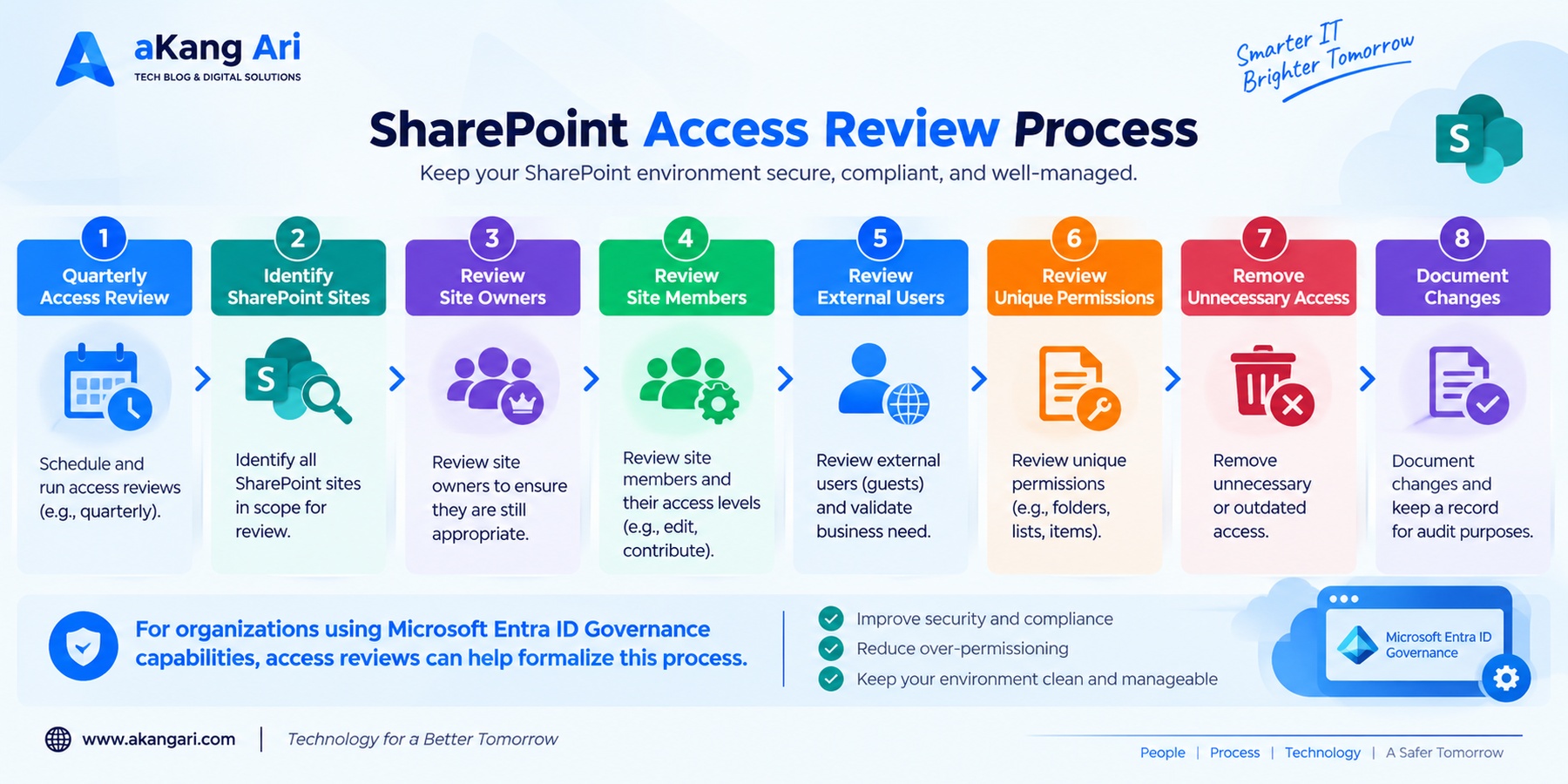
13. Implement Access Reviews
Permissions should not be considered permanent.
People change roles.
Departments change.
Projects end.
External vendors leave.
Temporary access can become permanent if nobody reviews it.
14. Monitor Orphaned Sites and Groups
Another common problem is the orphaned SharePoint site.
For example:
Project Alpha
Created: 2023
Owner: Former Employee
Members: 18
Last Activity: 2024
The site may still contain sensitive documents even though the project has already ended.
Organizations should periodically identify:
- Sites with inactive owners
- Sites without valid owners
- Inactive sites
- Groups without owners
- External users
- Unused sharing links
- Excessive unique permissions
This turns SharePoint permission management from a reactive task into an ongoing governance process.
15. Use a Standard Permission Model
For most organizations, a simple model is easier to operate.
For example:
16. Build a Permission Governance Standard
A mature SharePoint environment should have documented standards.
At minimum, define:
Site Creation
Who is allowed to create SharePoint sites?
Ownership
How many owners should each site have?
Groups
Which groups should be used?
Naming
What naming convention should be followed?
External Sharing
Who can enable external sharing?
Unique Permissions
When is breaking inheritance allowed?
Access Reviews
How frequently are permissions reviewed?
Offboarding
How is access removed?
Retention
What happens to inactive sites?
Audit
How are permission changes tracked?
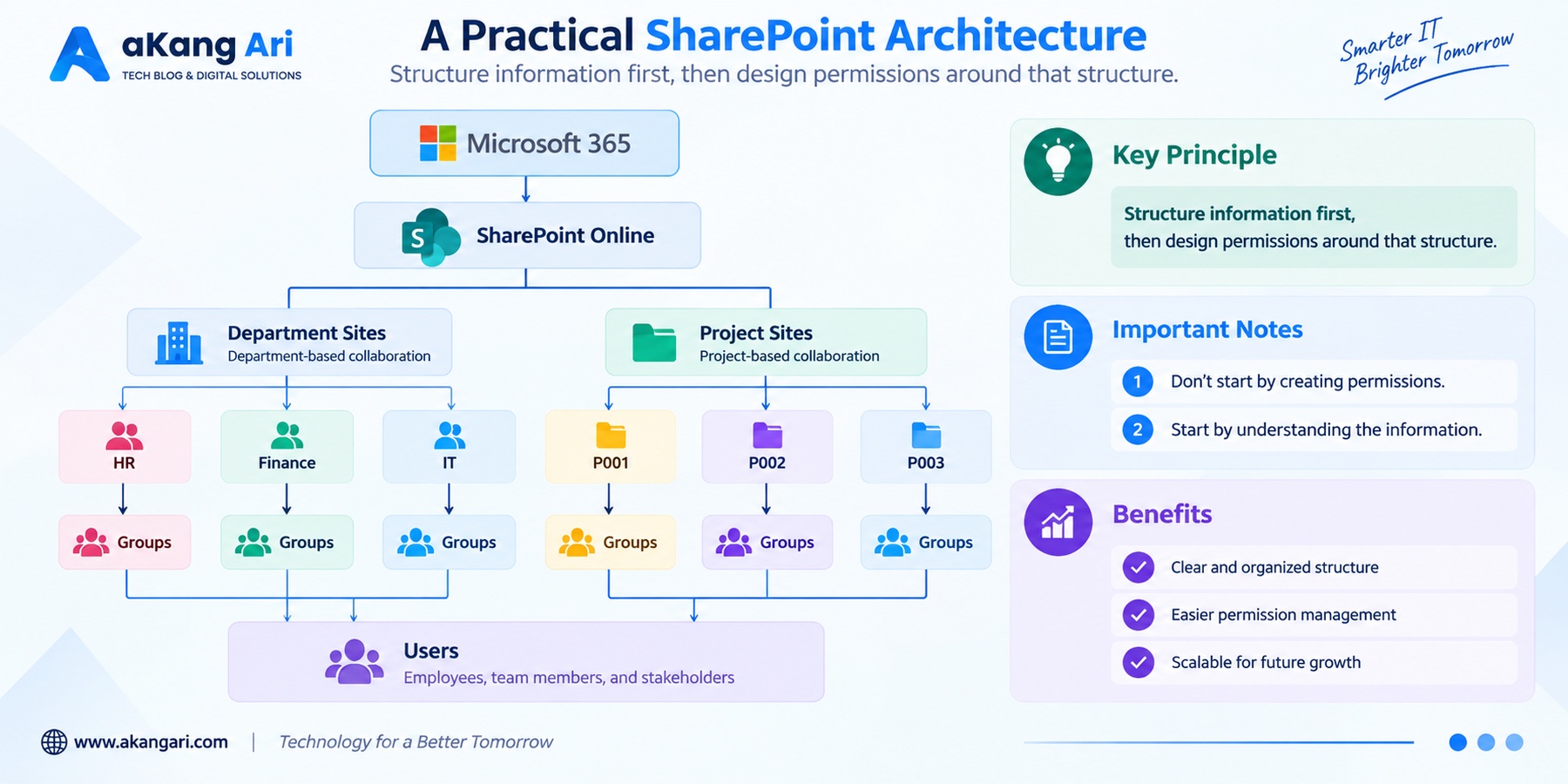
Recommended SharePoint Permission Architecture
A practical architecture can look like this:
SharePoint Permission Troubleshooting Checklist
When a user reports that they cannot access a resource, check the following:
1. Site Access
Does the user have access to the site?
2. Group Membership
Is the user a member of the correct Microsoft Entra ID or SharePoint group?
3. Permission Level
Does the group have the correct permission level?
4. Inheritance
Is permission inherited from the parent?
5. Unique Permissions
Does the folder or document have unique permissions?
6. Sharing Links
Was the resource shared directly with the user?
7. External Access
Is the user accessing the resource as an external user?
8. Authentication
Is the user signed in with the correct account?
9. Conditional Access
Are Microsoft Entra policies affecting access?
10. Resource Location
Is the user accessing the expected SharePoint site, library, folder, or document?
Common SharePoint Permission Mistakes
Here are some common patterns that should be avoided.
Mistake #1 — Giving Everyone Full Control
Everyone → Full ControlThis removes meaningful access boundaries.
Mistake #2 — Adding Users Individually
Folder
 ├── User A
 ├── User B
 ├── User C
 ├── User D
 └── User E
Use groups wherever practical.
Mistake #3 — Too Many Unique Permissions
Library
 ├── Folder A → Unique
 ├── Folder B → Unique
 ├── Folder C → Unique
 ├── Folder D → Unique
 └── Folder E → Unique
This quickly becomes difficult to audit.
Mistake #4 — No Permission Documentation
If only one administrator understands the permission model, the organization has a governance risk.
Document it.
Mistake #5 — Never Reviewing Access
A permission granted today may still exist years later.
Access should be periodically reviewed.
A Practical Governance Model
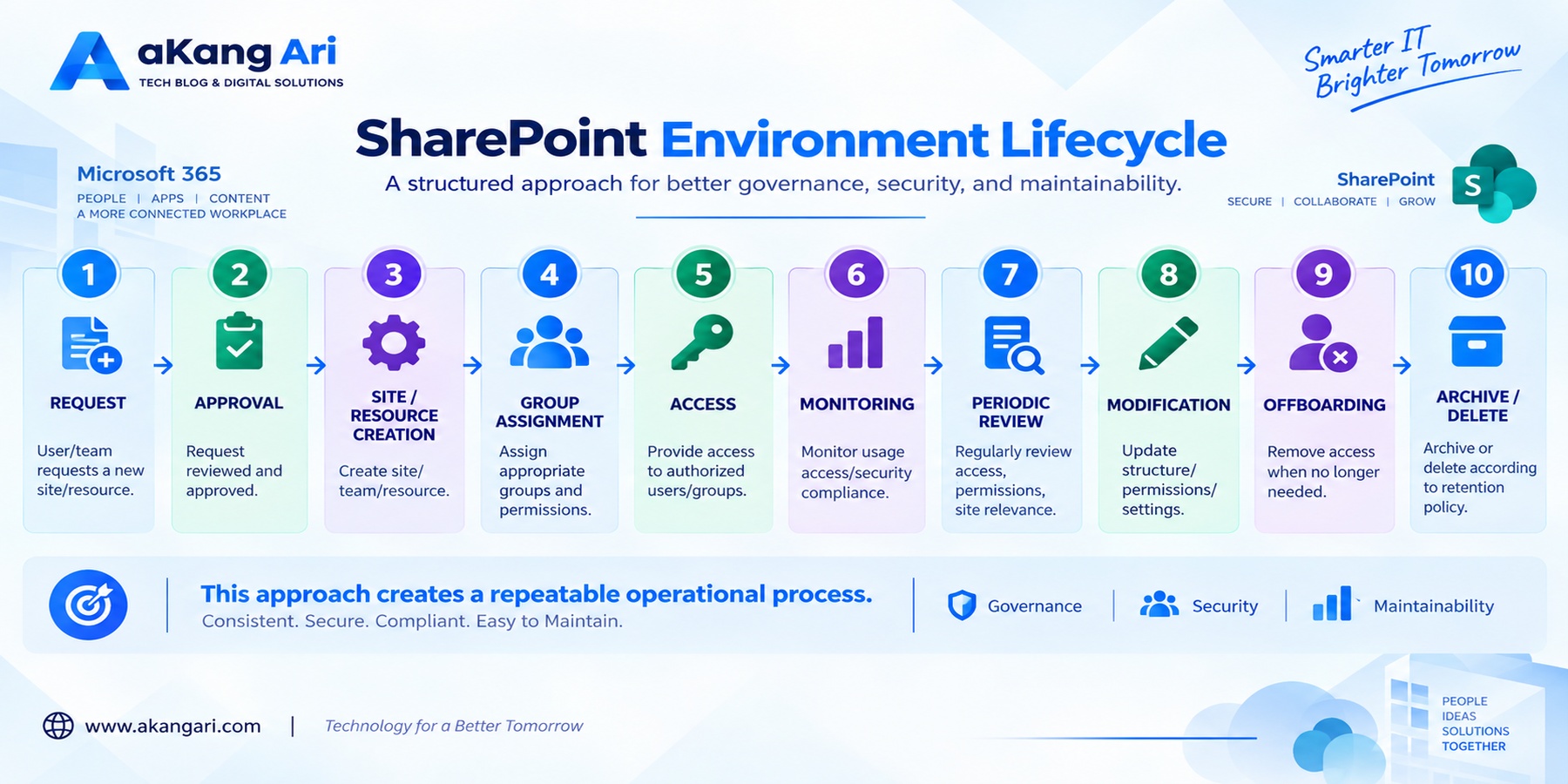
A mature SharePoint environment can use the following lifecycle:
Final Thoughts
Managing SharePoint permissions properly is not about creating the most complicated security model.
In many cases, the opposite is true.
A good SharePoint permission model should be:
- Simple
- Predictable
- Group-based
- Least-privilege
- Documented
- Auditable
- Reviewable
- Aligned with business requirements
The most important mindset is to stop thinking of SharePoint permissions as a collection of individual access settings.
Think of them as an access governance system.
When information architecture, group management, ownership, external sharing, and periodic access reviews work together, SharePoint becomes much easier to operate securely at scale.
Good permissions are not the permissions nobody can understand.
Good permissions are the permissions an administrator can explain, audit, and maintain.