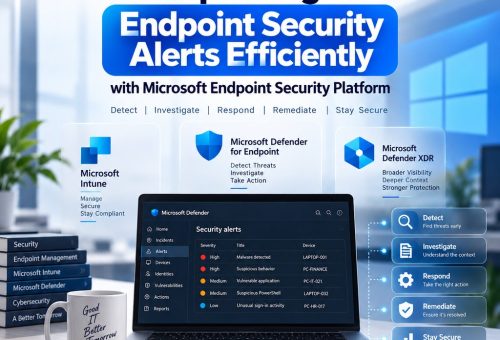


Microsoft Defender for Endpoint (MDE) merupakan salah satu komponen penting dalam modern endpoint security. Dengan menghubungkan perangkat Windows ke Microsoft Defender for Endpoint, organisasi dapat memperoleh visibility terhadap endpoint, mendeteksi suspicious activity, melakukan investigation, serta menjalankan response terhadap security incident.
Namun, sebelum fitur-fitur tersebut dapat digunakan secara optimal, setiap endpoint harus terlebih dahulu melalui proses onboarding ke Microsoft Defender for Endpoint.
Artikel ini membahas konsep onboarding, persiapan yang diperlukan, metode deployment, proses validasi, troubleshooting, serta beberapa best practice yang dapat digunakan dalam environment enterprise.
Apa Itu Microsoft Defender for Endpoint?
Microsoft Defender for Endpoint adalah platform endpoint security dari Microsoft yang dirancang untuk membantu organisasi:
- Detect malware dan suspicious activity
- Monitor endpoint secara real-time
- Investigate security incidents
- Detect vulnerabilities
- Perform automated investigation and response
- Collect endpoint telemetry
- Identify attack techniques
- Manage endpoint security posture
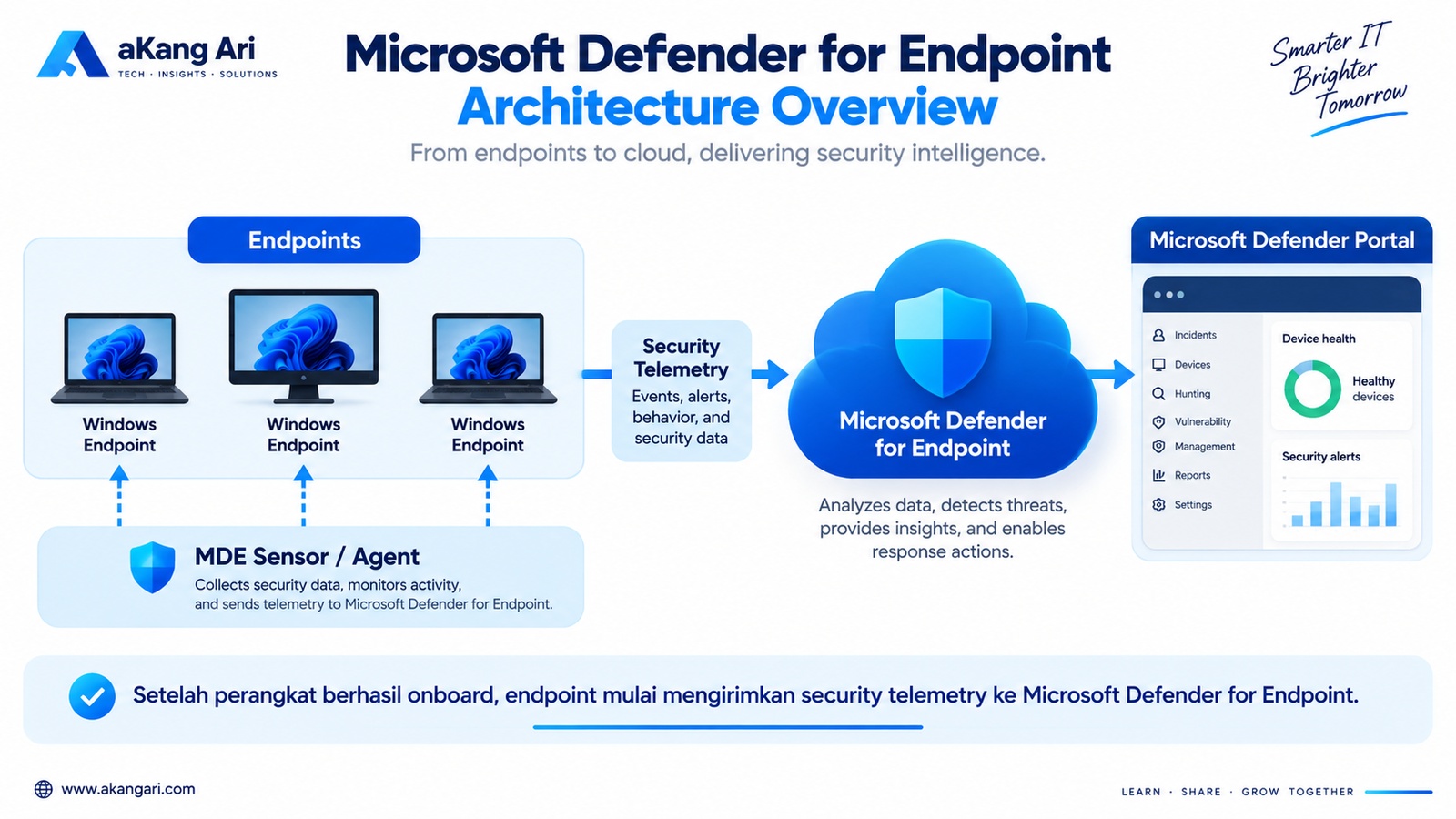
Mengapa Device Harus Di-Onboard?
Tanpa onboarding, Microsoft Defender for Endpoint tidak dapat memperoleh telemetry endpoint secara lengkap.
Device yang sudah onboard dapat memberikan informasi seperti:
- Device identity
- Operating system
- Running processes
- Network activity
- Security events
- Detected vulnerabilities
- Security recommendations
- Alerts
- Exposure information
- Device risk level
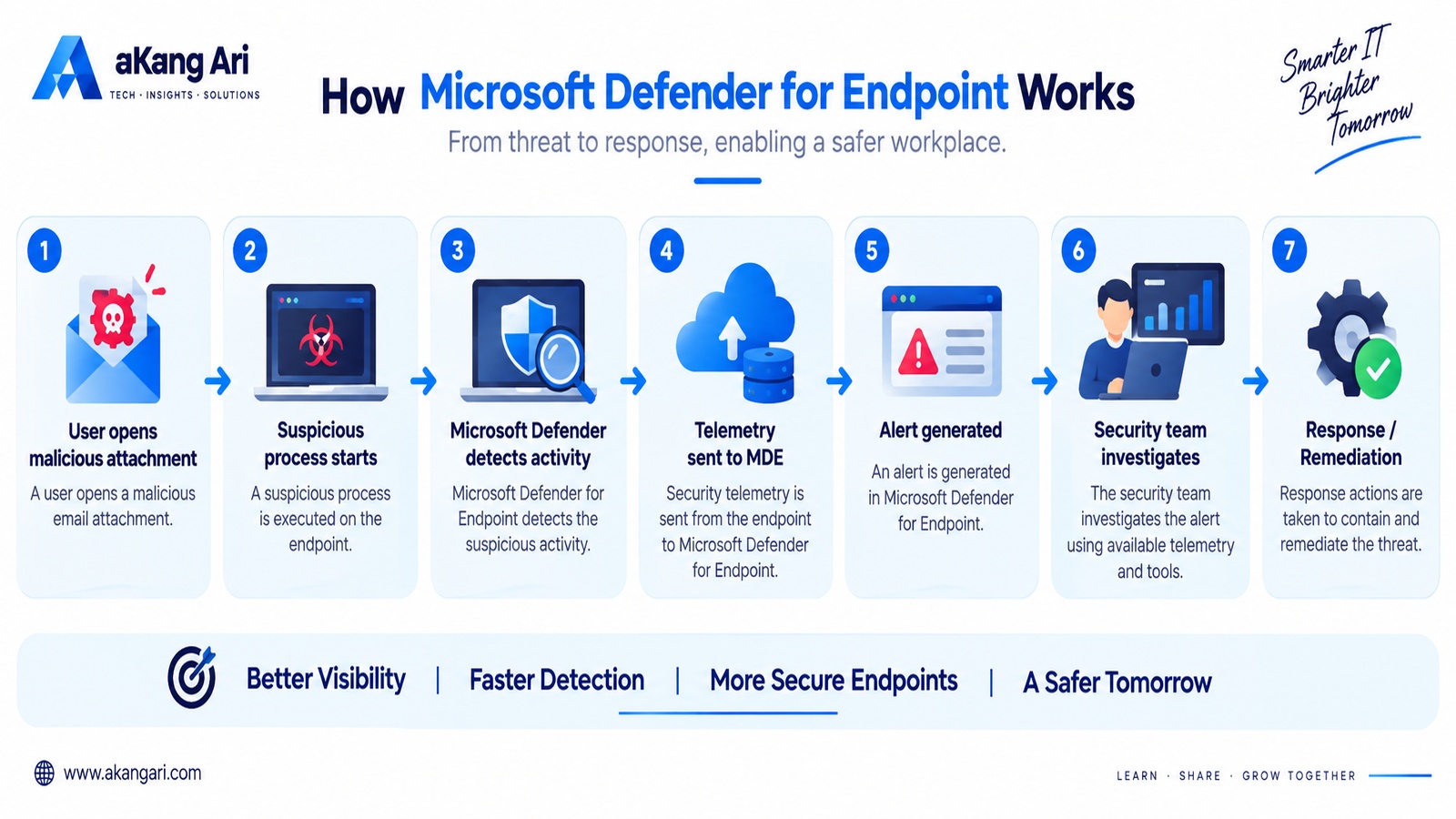
Informasi tersebut kemudian dapat digunakan security team untuk melakukan monitoring dan investigation.
Contohnya:
Prerequisites Sebelum Onboarding
Sebelum melakukan onboarding, pastikan environment sudah memenuhi beberapa requirement dasar.
1. Microsoft Defender for Endpoint License
Organisasi harus memiliki license yang mendukung Microsoft Defender for Endpoint.
Contoh license Microsoft yang dapat mencakup kemampuan MDE antara lain:
- Microsoft Defender for Endpoint Plan 1
- Microsoft Defender for Endpoint Plan 2
- Microsoft 365 E3
- Microsoft 365 E5
- Microsoft 365 Business Premium
Ketersediaan fitur dapat berbeda berdasarkan jenis license dan konfigurasi tenant.
2. Supported Operating System
Pastikan operating system endpoint termasuk dalam platform yang didukung oleh Microsoft Defender for Endpoint.
Contoh environment yang umum digunakan:
- Windows 10
- Windows 11
- Windows Server
- macOS
- Linux
- Mobile platforms untuk skenario tertentu
Untuk environment enterprise, sebaiknya selalu melakukan pengecekan terhadap compatibility dan support matrix Microsoft sebelum deployment.
3. Network Connectivity
Endpoint harus dapat berkomunikasi dengan Microsoft Defender cloud services.
Pastikan:
Endpoint
   │
   ├── DNS
   │
   ├── HTTPS / TCP 443
   │
   ▼
Microsoft Security Cloud Services
Firewall, proxy, SSL inspection, atau network filtering yang terlalu restrictive dapat menyebabkan onboarding gagal.
4. Administrative Permission
Beberapa metode onboarding membutuhkan administrator privilege.
Jika deployment dilakukan menggunakan Microsoft Intune, administrator juga harus memiliki permission yang sesuai untuk membuat dan mengassign policy atau script.
Metode Onboarding Device
Microsoft menyediakan beberapa metode onboarding.
Pemilihan metode sebaiknya disesuaikan dengan infrastructure organisasi.
Beberapa metode yang umum digunakan adalah:
| Environment | Recommended Approach |
|---|---|
| Microsoft Intune | Intune onboarding policy |
| Microsoft Configuration Manager | Configuration Manager |
| Active Directory | Group Policy |
| Hybrid Environment | Intune / GPO / Configuration Manager |
| Manual Testing | Local Script |
| Windows Server | Server-specific onboarding method |
Untuk organisasi yang sudah menggunakan Microsoft Intune, onboarding melalui Intune biasanya menjadi salah satu pendekatan yang paling praktis karena deployment dapat dilakukan secara centralized.
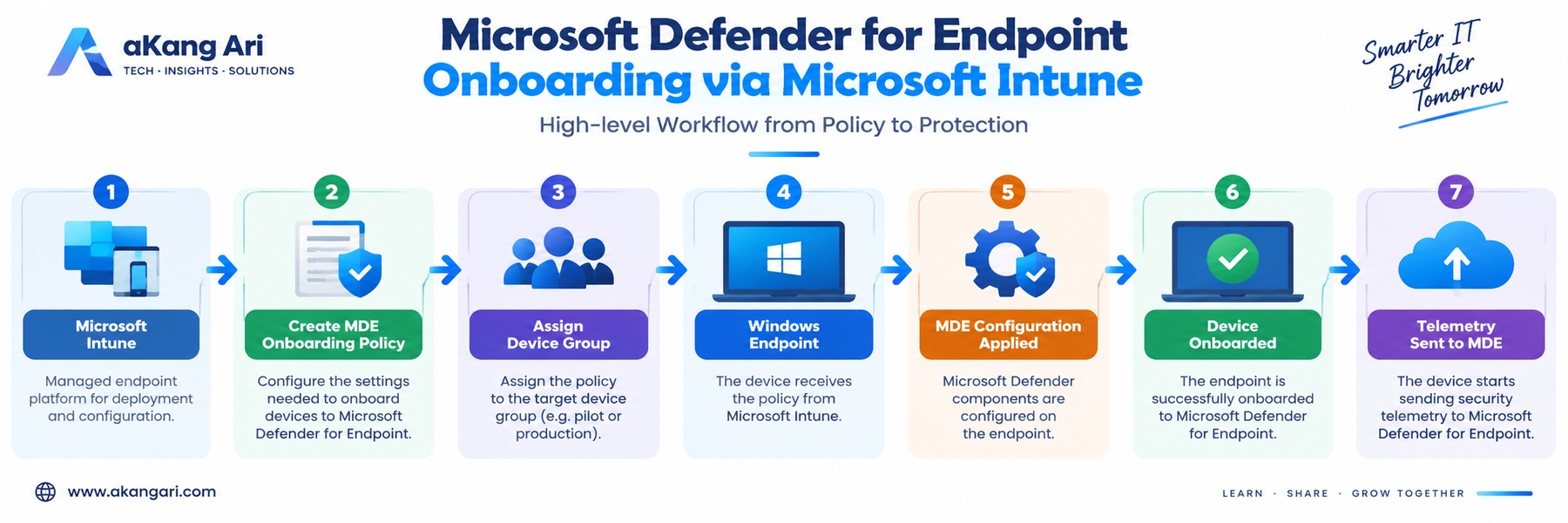
Onboarding melalui Microsoft Intune
Jika endpoint sudah ter-enroll ke Microsoft Intune, proses onboarding dapat dilakukan secara centralized.
High-level workflow:
Step 1 — Prepare Device Group
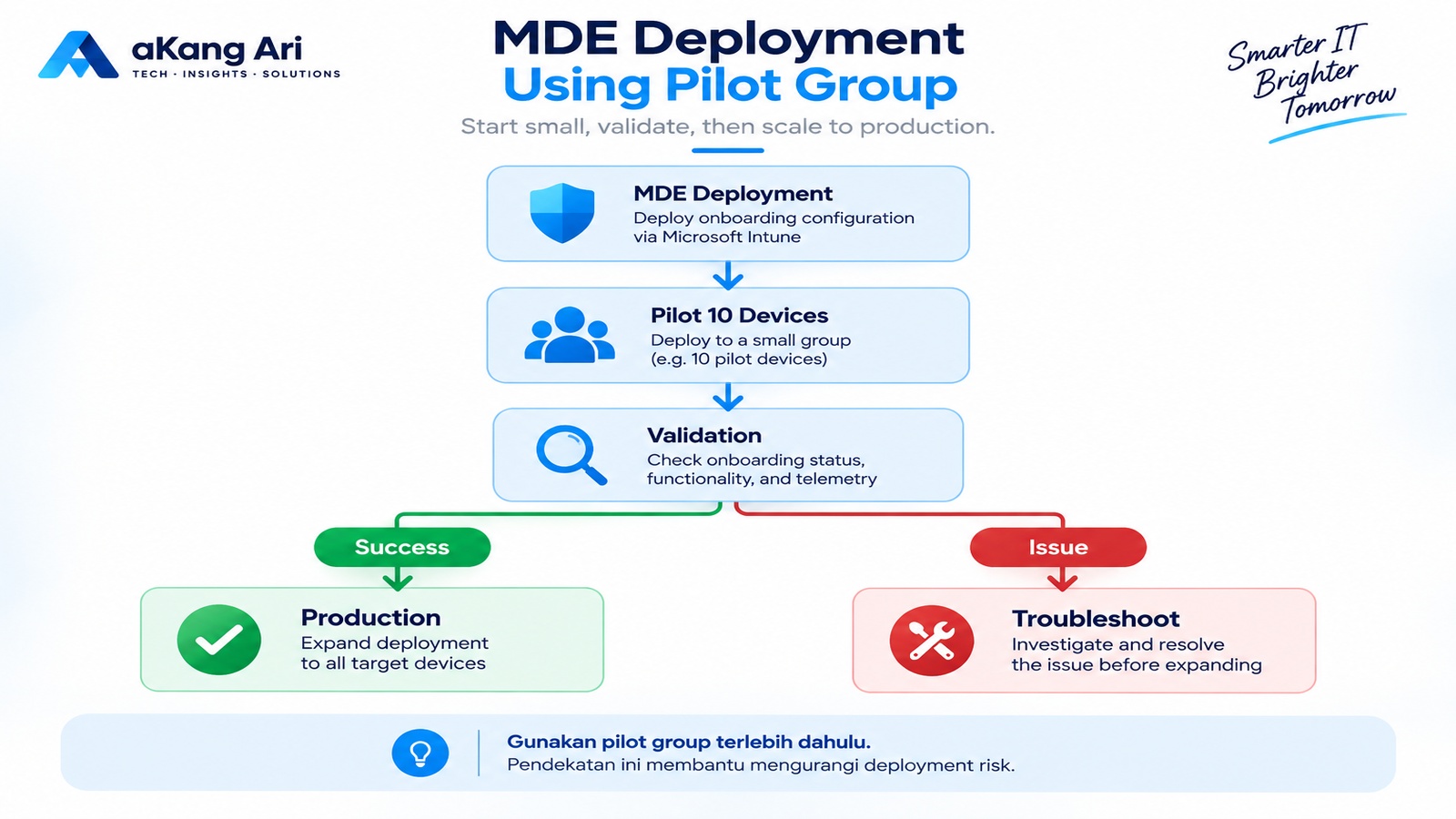
Salah satu best practice adalah membuat dedicated group untuk onboarding.
Contoh:
MDE-Onboarding-Pilot
MDE-Onboarding-Production
MDE-Onboarding-Servers
MDE-Onboarding-Exceptions
Jangan langsung melakukan deployment ke seluruh endpoint.
Gunakan pilot group terlebih dahulu.
Contohnya:
Step 2 — Configure Microsoft Defender for Endpoint Integration
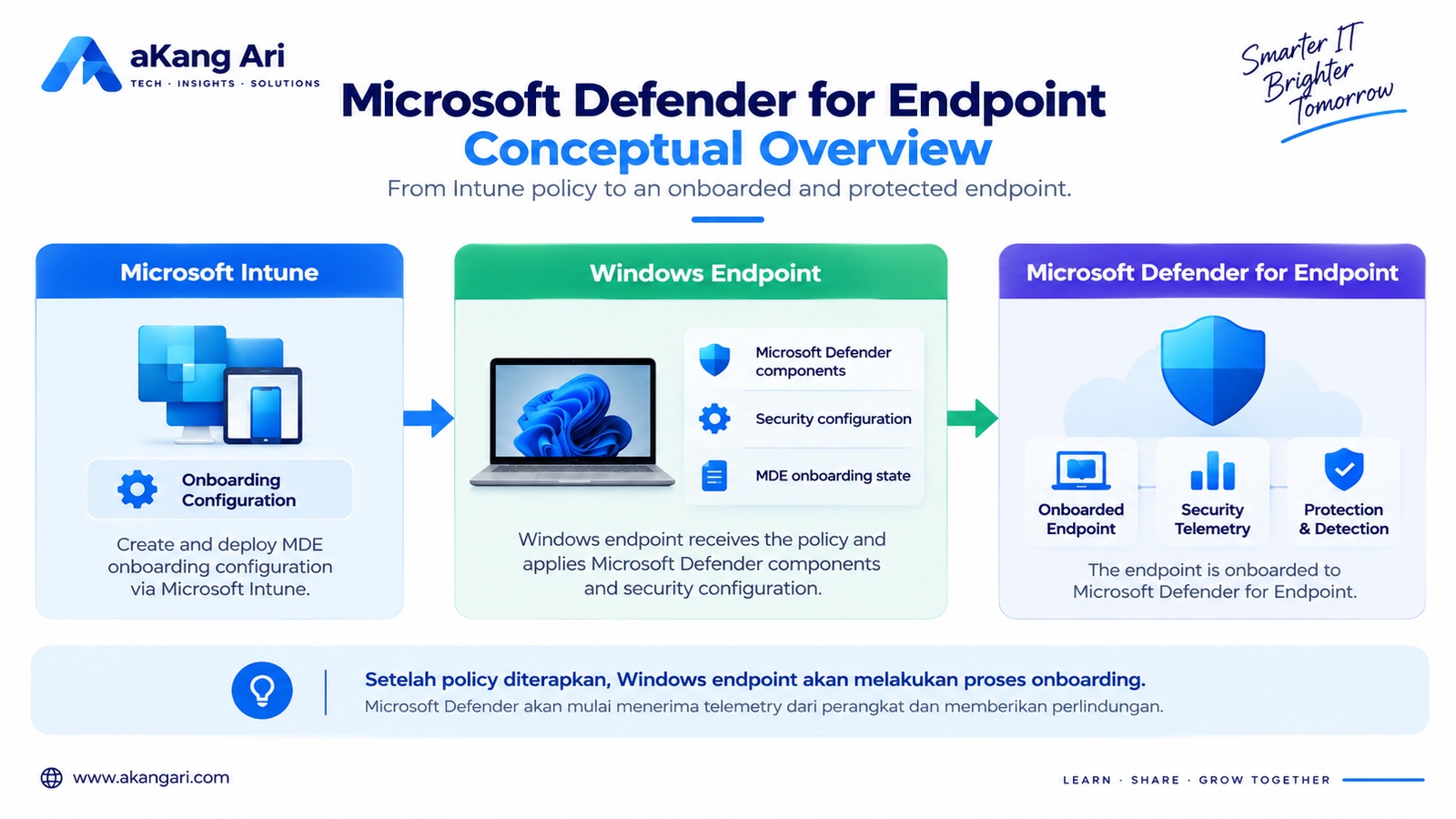
Pastikan Microsoft Defender for Endpoint sudah terintegrasi dengan Microsoft Intune.
Di Microsoft Intune admin center, administrator dapat melakukan konfigurasi integration sesuai tenant environment.
Konfigurasi ini memungkinkan Intune dan Defender for Endpoint bekerja bersama untuk:
- Device onboarding
- Security policy
- Device compliance
- Threat protection
- Risk-based compliance
- Security recommendations
Step 3 — Configure Onboarding
Onboarding policy digunakan untuk memberikan konfigurasi yang diperlukan agar endpoint dapat terhubung dengan Microsoft Defender for Endpoint.
Step 4 — Assign Policy
Assign policy ke pilot device group terlebih dahulu.
Contoh deployment:
Policy:
MDE-Onboarding-Windows

Assignment:
└── MDE-Onboarding-Pilot
       ├── LAPTOP-001
       ├── LAPTOP-002
       ├── LAPTOP-003
       └── LAPTOP-004
Setelah deployment berhasil dan hasil validasi sesuai expectation, assignment dapat diperluas ke production devices.
Step 5 — Force Intune Sync
Jika device belum menerima policy, administrator dapat melakukan sync dari Intune atau Company Portal.
Di sisi Windows endpoint, administrator juga dapat melakukan troubleshooting terhadap Intune Management Extension apabila deployment menggunakan script.
Pastikan device:
- Terhubung ke internet
- Terdaftar di Intune
- Memiliki valid MDM enrollment
- Tidak mengalami enrollment corruption
- Tidak mengalami duplicate device object
Validating MDE Onboarding
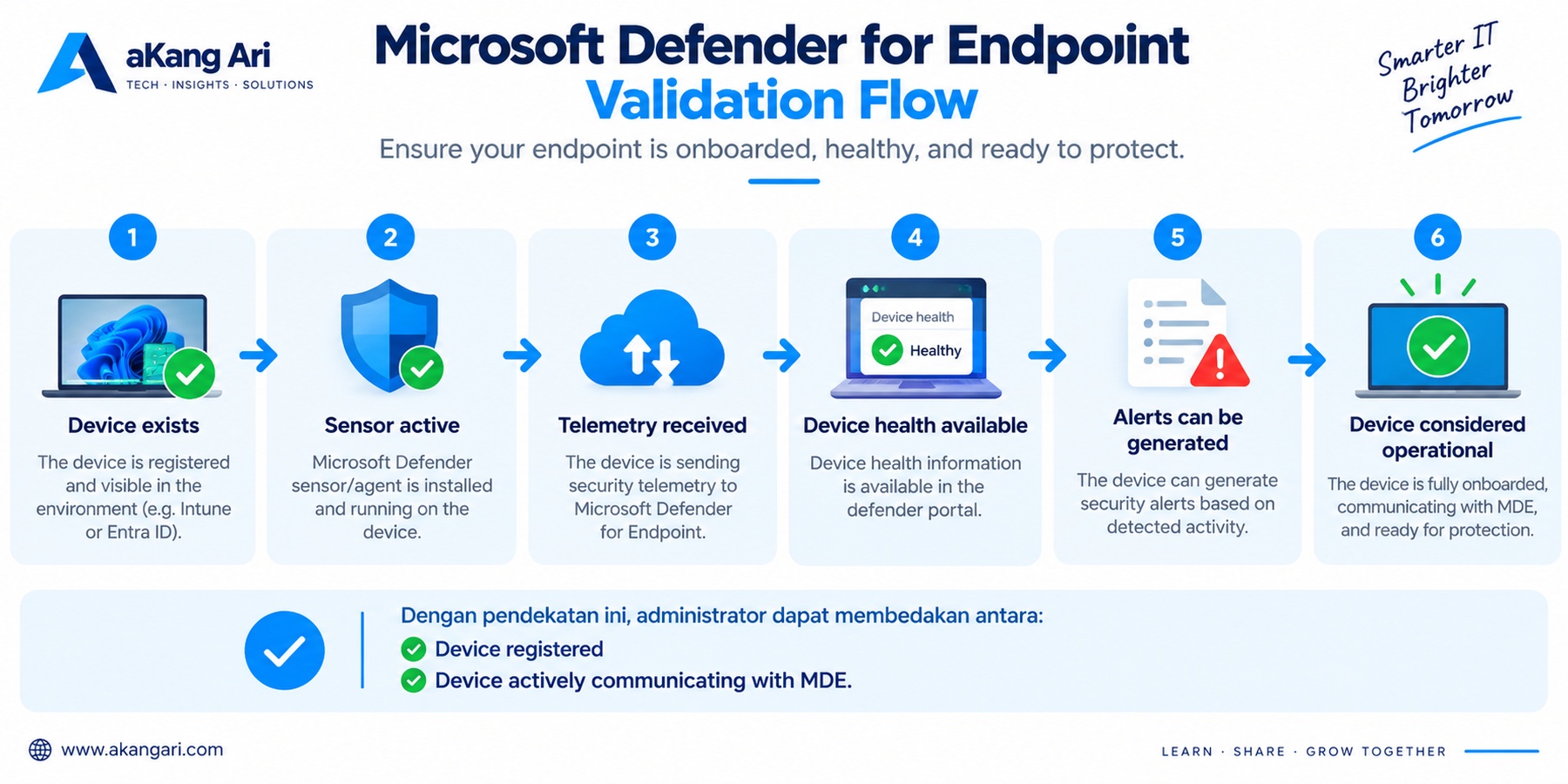
Onboarding belum dapat dianggap berhasil hanya karena policy berhasil diterapkan.
Ada dua sisi validation yang perlu dilakukan:
- Endpoint-side validation
- Microsoft Defender portal validation
Endpoint-Side Validation
Pada Windows endpoint, administrator dapat memeriksa status Microsoft Defender.
Salah satu command yang umum digunakan adalah:
Get-MpComputerStatusPerhatikan informasi seperti:
AMServiceEnabled
AntivirusEnabled
RealTimeProtectionEnabled
BehaviorMonitorEnabled
IoavProtectionEnabled
Namun, status antivirus aktif tidak selalu berarti device sudah successfully onboarded ke MDE.
Karena itu diperlukan validation tambahan.
Check Microsoft Defender for Endpoint Service
Periksa service terkait Microsoft Defender.
Contoh:
Get-Service | Where-Object {
    $_.Name -match "Sense"
}
Pada Windows endpoint yang menjalankan MDE, service sensor MDE biasanya berkaitan dengan service Sense.
Contoh pemeriksaan:
Get-Service SenseStatus yang diharapkan:
Status   : Running
Name     : Sense
Jika service tidak berjalan, perlu dilakukan investigation lebih lanjut.
Check MDE Sensor
MDE menggunakan sensor untuk mengumpulkan telemetry endpoint.
Administrator dapat memeriksa status service:
sc.exe query senseOutput yang menunjukkan service running merupakan salah satu indikator bahwa sensor aktif.
Namun, tetap lakukan validasi dari Defender portal.
Validate Device in Microsoft Defender Portal
Setelah onboarding, device seharusnya muncul pada Microsoft Defender portal.
Administrator dapat melakukan pencarian berdasarkan:
- Device name
- Device ID
- Domain
- IP address
- User
- Operating system
Contoh:
Device Name:
LAPTOP-JAKARTA-001

OS:
Windows 11

Health:
Active

Risk Level:
Low

Onboarding:
Onboarded
Status sebenarnya akan bergantung pada kondisi endpoint dan tenant.
Jangan Hanya Mengecek "Device Appears"
Salah satu kesalahan umum adalah menganggap onboarding berhasil hanya karena device sudah muncul di portal.
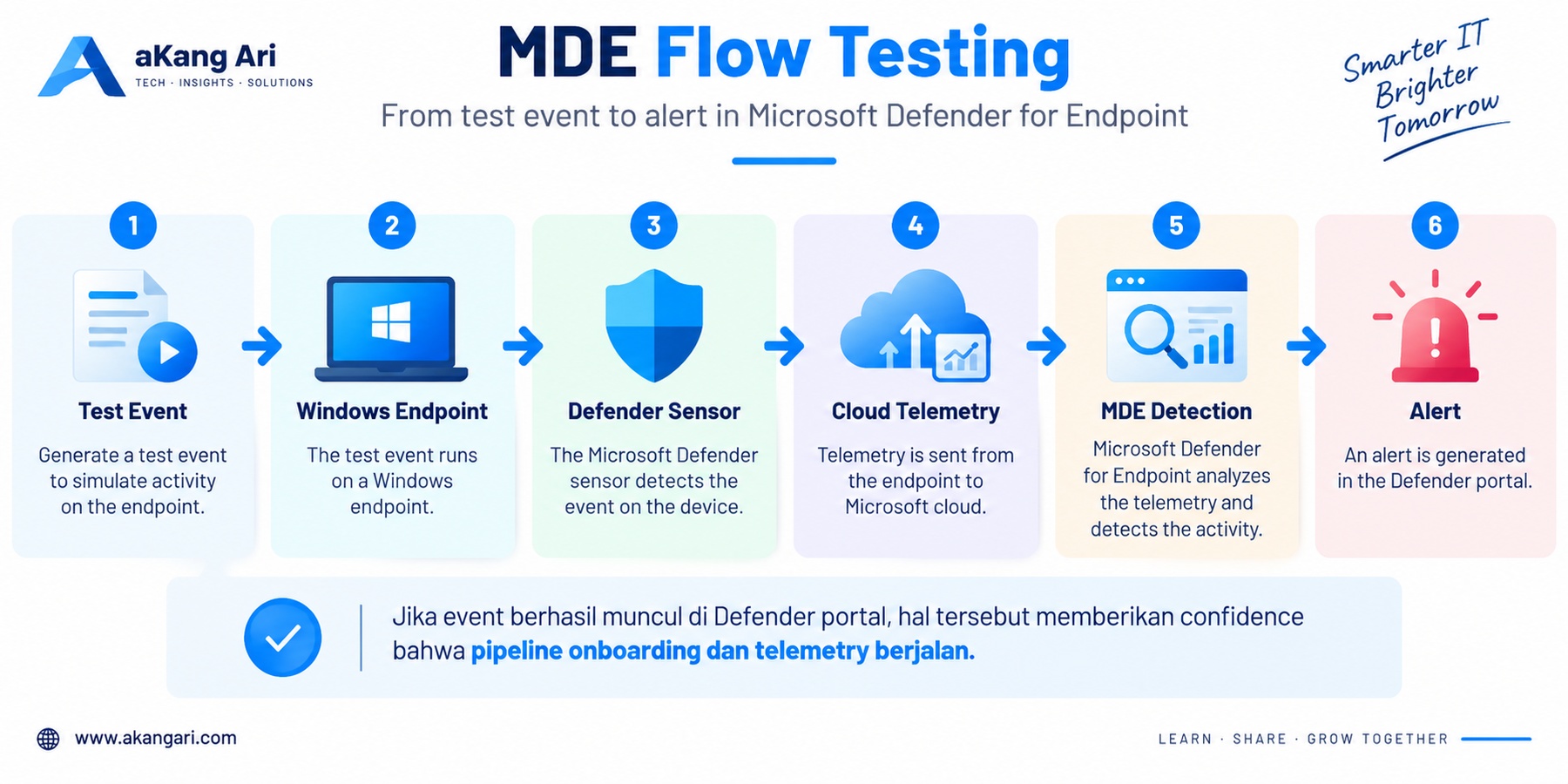
Testing Onboarding
Setelah onboarding, lakukan controlled validation.
Salah satu metode yang tersedia adalah menggunakan Microsoft Defender for Endpoint detection test sesuai prosedur resmi Microsoft.
Tujuannya bukan untuk menyerang endpoint, tetapi untuk memastikan bahwa security telemetry dan detection pipeline bekerja dengan benar.
Common Onboarding Problems
Tidak semua device akan berhasil onboard pada percobaan pertama.
Beberapa masalah yang sering ditemukan:
1. Device Tidak Muncul di MDE
Kemungkinan penyebab:
- Onboarding policy belum diterima
- Device belum sync dengan Intune
- MDE service belum aktif
- Network connectivity problem
- Proxy issue
- Firewall blocking
- Device enrollment issue
2. Device Muncul Tetapi Tidak Active
Kondisi:
Device:
LAPTOP-001

Portal:
Device Found

Status:
Inactive
Hal ini dapat mengindikasikan bahwa device tidak mengirim telemetry terbaru.
Investigation dapat mencakup:
Get-Service SenseKemudian periksa connectivity dan endpoint health.
3. MDE Sensor Tidak Running
Jika:
Sense = Stoppedmaka administrator perlu melakukan investigation.
Jangan langsung melakukan reinstall atau perubahan configuration tanpa mengetahui root cause.
Periksa:
- Windows event logs
- Defender logs
- Service configuration
- Security software conflict
- Policy configuration
- Endpoint health
4. Intune Policy Tidak Applied
Jika onboarding policy tidak diterapkan, periksa:
Device
  │
  ├── Intune Enrollment
  │
  ├── MDM Status
  │
  ├── Policy Assignment
  │
  ├── Policy Status
  │
  └── Sync Status
Masalah Intune enrollment dapat menyebabkan MDE onboarding terlihat seperti masalah Defender, padahal root cause sebenarnya berada pada Intune.
5. Hybrid Azure AD Join Issues
Dalam environment Hybrid Azure AD joined, masalah join state dapat memengaruhi deployment.
Periksa:
dsregcmd /statusPerhatikan informasi seperti:
AzureAdJoined
DomainJoined
DeviceAuthStatus
Misalnya:
AzureAdJoined : YES
DomainJoined  : YES
Jika join state bermasalah, selesaikan terlebih dahulu masalah identity/device registration sebelum melakukan troubleshooting MDE secara agresif.
6. Duplicate Device Objects
Enterprise environment dapat memiliki duplicate device records.
Contoh:
LAPTOP-001
LAPTOP-001
LAPTOP-001
Device name yang sama belum tentu menunjukkan device yang sama.
Administrator sebaiknya menggunakan identifier yang lebih reliable seperti:
- Device ID
- Entra ID object ID
- Hardware identity
- Serial number
- MDE device ID
Troubleshooting Checklist
Jika device gagal onboarding, gunakan checklist berikut.
Identity
[ ] Device exists in Entra ID
[ ] Device exists in Intune
[ ] Correct device ownership
[ ] Correct device group
[ ] No duplicate object
Intune
[ ] Device enrolled
[ ] MDM active
[ ] Policy assigned
[ ] Policy applied
[ ] Last check-in recent
Windows
[ ] Windows supported
[ ] Defender enabled
[ ] Sense service available
[ ] Sense service running
[ ] No security software conflict
Network
[ ] DNS working
[ ] Internet access available
[ ] HTTPS connectivity
[ ] Proxy configured correctly
[ ] Firewall allows required endpoints
Defender Portal
[ ] Device appears
[ ] Device health available
[ ] Recent telemetry
[ ] Recent activity
[ ] No onboarding error
PowerShell Validation Script
Untuk enterprise environment, administrator dapat membuat lightweight validation script.
Contoh sederhana:
$Result = [PSCustomObject]@{
    ComputerName = $env:COMPUTERNAME
    SenseService = $null
    SenseStatus  = $null
    DefenderEnabled = $null
}

$Sense = Get-Service -Name Sense -ErrorAction SilentlyContinue

if ($Sense) {
    $Result.SenseService = $true
    $Result.SenseStatus = $Sense.Status
}
else {
    $Result.SenseService = $false
}

$Defender = Get-MpComputerStatus -ErrorAction SilentlyContinue

if ($Defender) {
    $Result.DefenderEnabled = $Defender.AntivirusEnabled
}

$Result
Output dapat digunakan untuk initial assessment:
ComputerName : LAPTOP-001
SenseService : True
SenseStatus  : Running
DefenderEnabled : True
Untuk enterprise deployment, script sebaiknya dikembangkan lebih lanjut dengan:
- Logging
- Exit code
- Event log collection
- Connectivity testing
- MDE onboarding state
- Timestamp
- Version information
- JSON/CSV output
- Intune detection compatibility
Enterprise Deployment Strategy
Untuk organisasi dengan ratusan atau ribuan endpoint, onboarding sebaiknya dilakukan secara bertahap.
Contoh:
Phase 1 — Pilot
10–20 devicesTujuan:
- Validate policy
- Validate network
- Validate telemetry
- Identify compatibility issues
Phase 2 — IT / Technical Users
50–100 devicesTujuan:
- Validate broader hardware/software combinations
- Monitor performance
- Validate business applications
Phase 3 — Production Wave
10–25% devicesKemudian:
25%
 ↓
50%
 ↓
75%
 ↓
100%
Pendekatan gradual seperti ini mempermudah rollback dan troubleshooting.
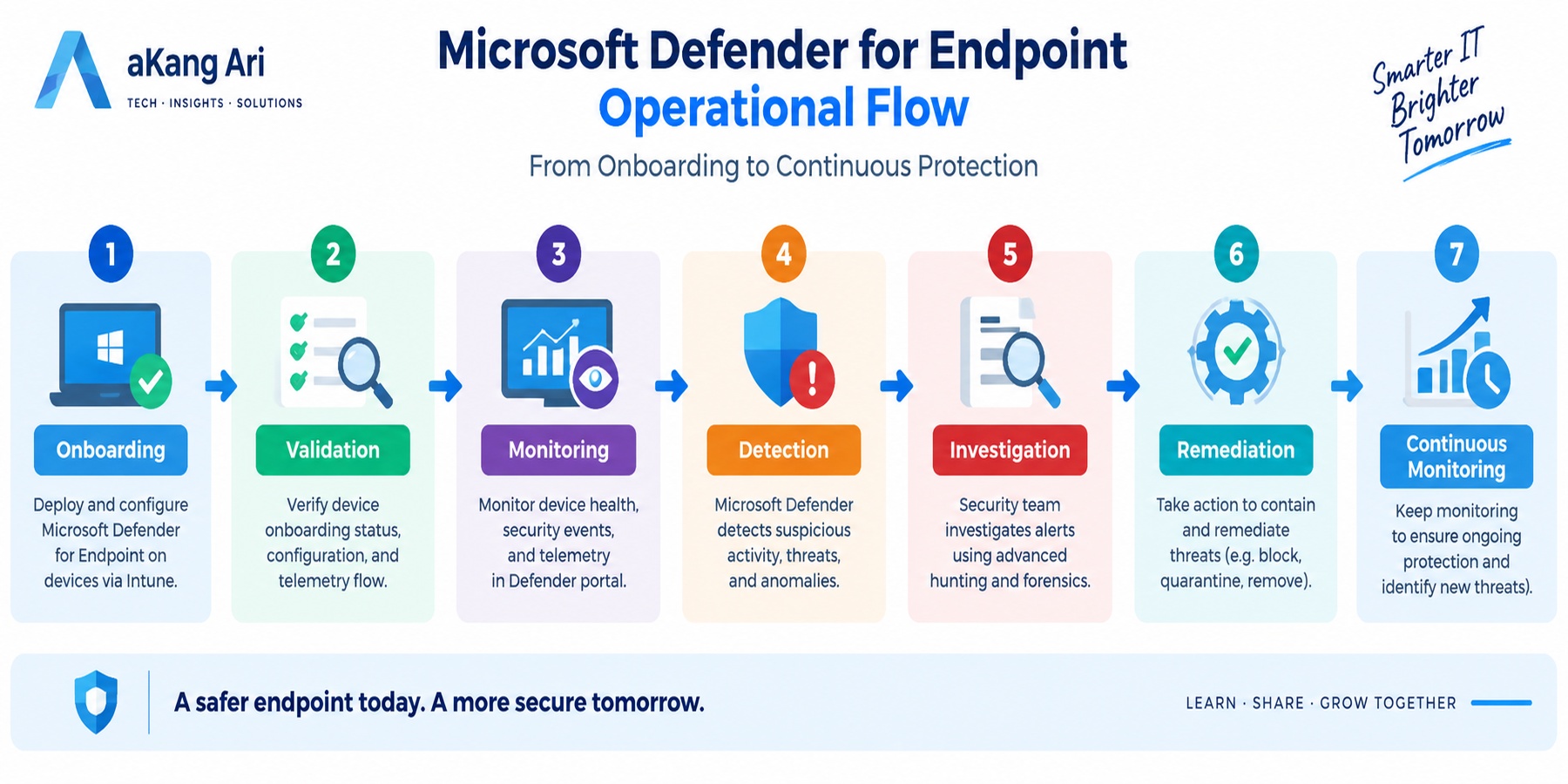
Monitoring Setelah Onboarding
Onboarding bukanlah akhir dari endpoint security lifecycle.
Setelah device onboard, security team perlu memonitor:
- Device health
- Exposure
- Vulnerabilities
- Security recommendations
- Alerts
- Risk level
- Sensor health
- Device activity
Integrating MDE with Vulnerability Management
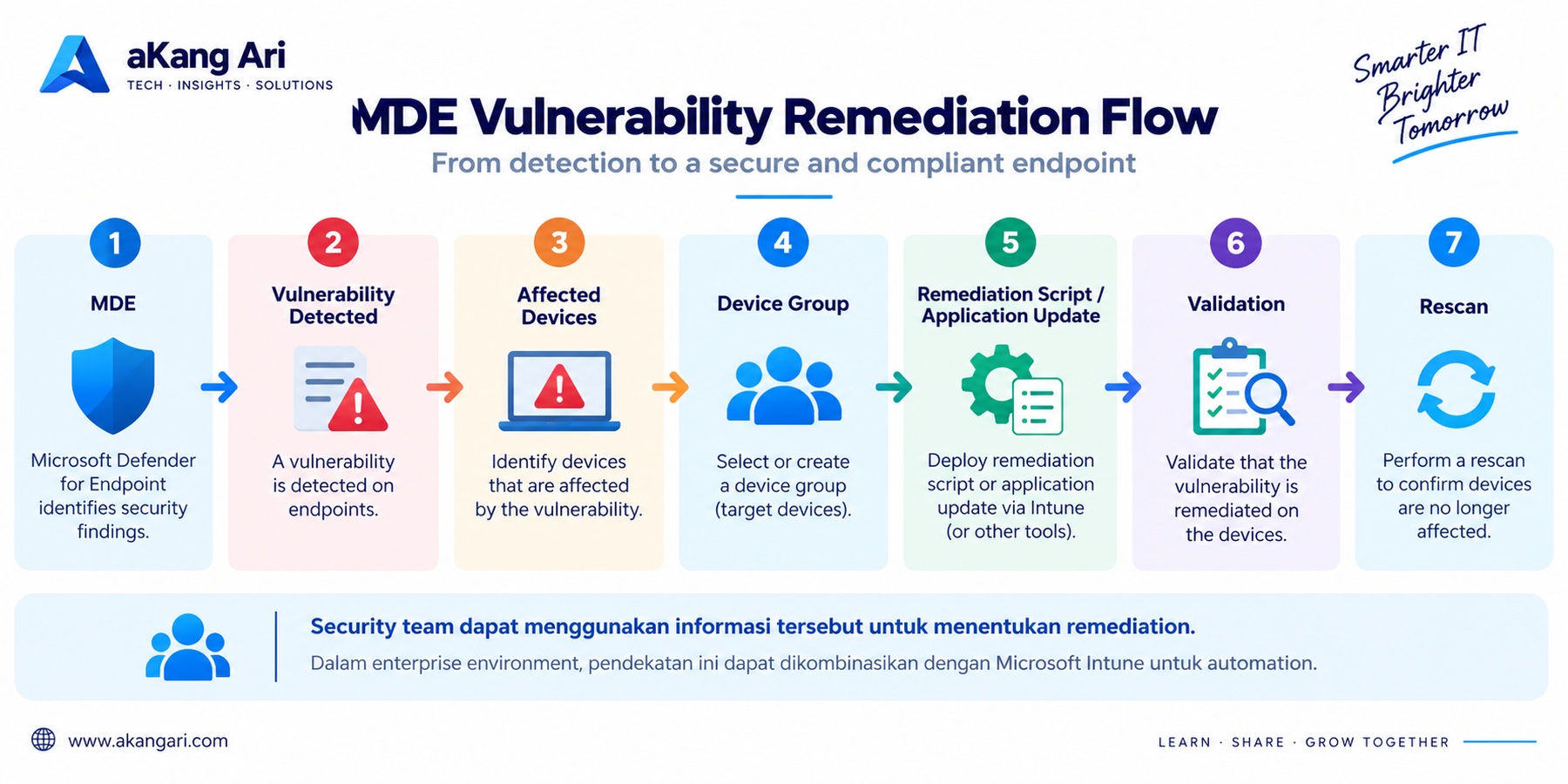
Salah satu manfaat besar MDE adalah kemampuan memberikan visibility terhadap vulnerability dan exposure.
Misalnya ditemukan:
Adobe Acrobat
Version: 11.x
Vulnerability:
Multiple CVEs
Security team dapat menggunakan informasi tersebut untuk menentukan remediation.
MDE + Intune: Powerful Combination
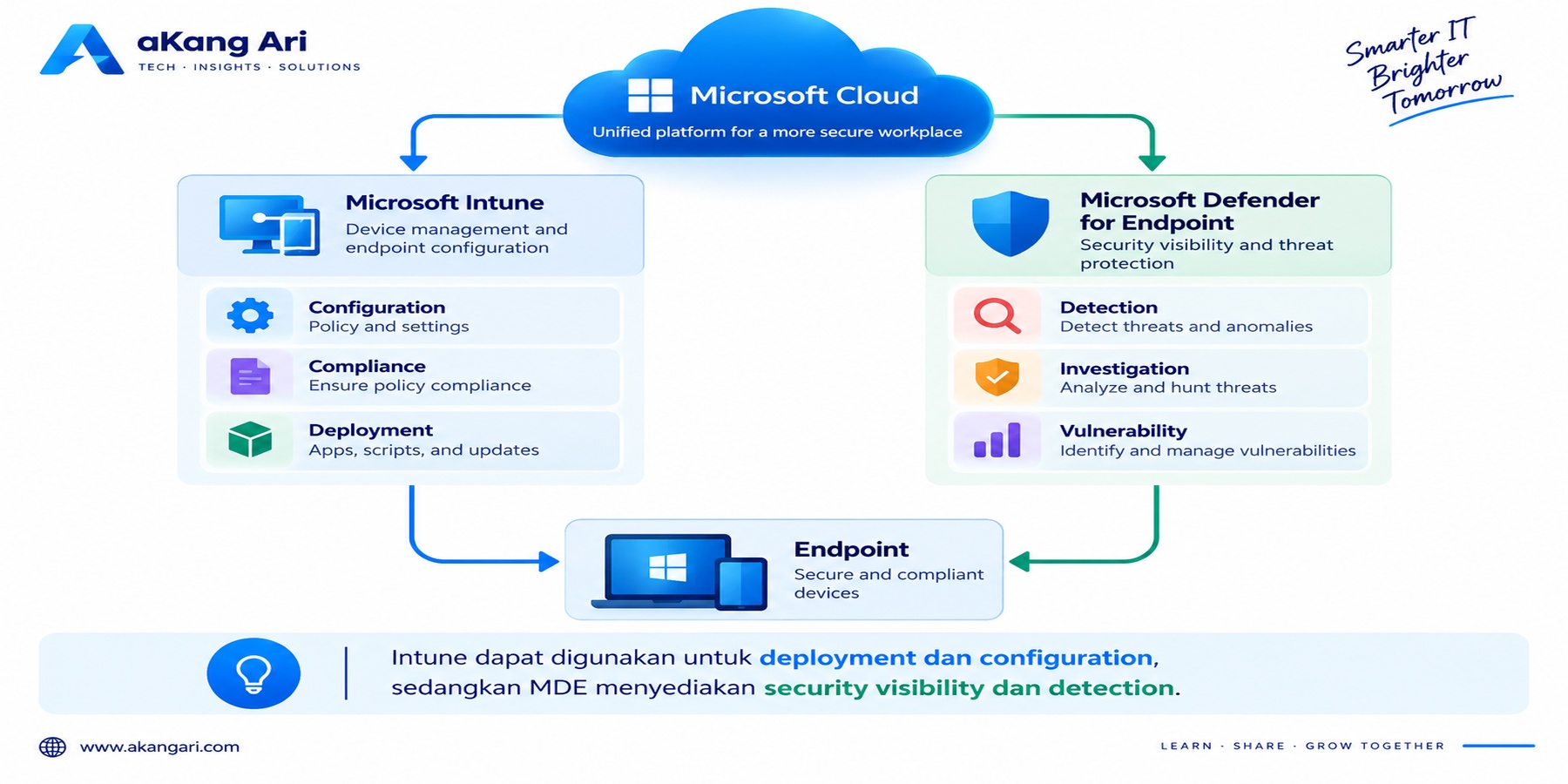
Kombinasi Microsoft Defender for Endpoint dan Intune memungkinkan organisasi membangun security lifecycle yang lebih terintegrasi.
Contohnya:
Best Practices
1. Always Use Pilot Deployment
Jangan langsung deploy ke seluruh endpoint.
2. Build Dedicated Device Groups
Gunakan group yang jelas untuk:
- Pilot
- Production
- Servers
- Exceptions
- Test devices
3. Monitor Deployment Status
Jangan hanya melihat policy assignment.
Monitor:
Assigned
↓
Succeeded
↓
Onboarded
↓
Active
↓
Telemetry Received
4. Maintain Exception Process
Tidak semua endpoint mungkin dapat langsung onboard.
Contohnya:
- Legacy OS
- Critical server
- Special application
- Offline device
- Third-party managed endpoint
Buat documented exception process.
5. Automate Validation
Untuk environment besar, manual checking tidak scalable.
Gunakan automation untuk mengumpulkan:
Computer Name
Serial Number
OS Version
Intune Status
MDE Status
Sense Status
Last Check-in
Last Telemetry
Onboarding State
Kemudian hasil dapat dimasukkan ke dashboard.
Recommended Enterprise Dashboard
Untuk organisasi dengan jumlah endpoint besar, dashboard onboarding dapat memiliki KPI seperti:
| KPI | Description |
|---|---|
| Total Devices | Total managed endpoints |
| Intune Enrolled | Devices enrolled in Intune |
| MDE Onboarded | Successfully onboarded devices |
| MDE Active | Devices actively communicating |
| MDE Inactive | Devices with stale telemetry |
| Failed Onboarding | Devices requiring remediation |
| Exceptions | Approved exclusions |
| Coverage | MDE coverage percentage |
Contoh:
Total Endpoints          2,500
Intune Enrolled          2,430
MDE Onboarded            2,390
MDE Active               2,350
Inactive                    40
Failed Onboarding           40
Exceptions                  20
MDE coverage dapat dihitung sebagai:
MDE Coverage =
MDE Onboarded / Total Managed Devices × 100%
Conclusion
Onboarding devices to Microsoft Defender for Endpoint merupakan langkah fundamental dalam membangun endpoint security yang terintegrasi.
Namun, keberhasilan onboarding tidak seharusnya hanya diukur dari apakah device muncul di Microsoft Defender portal.
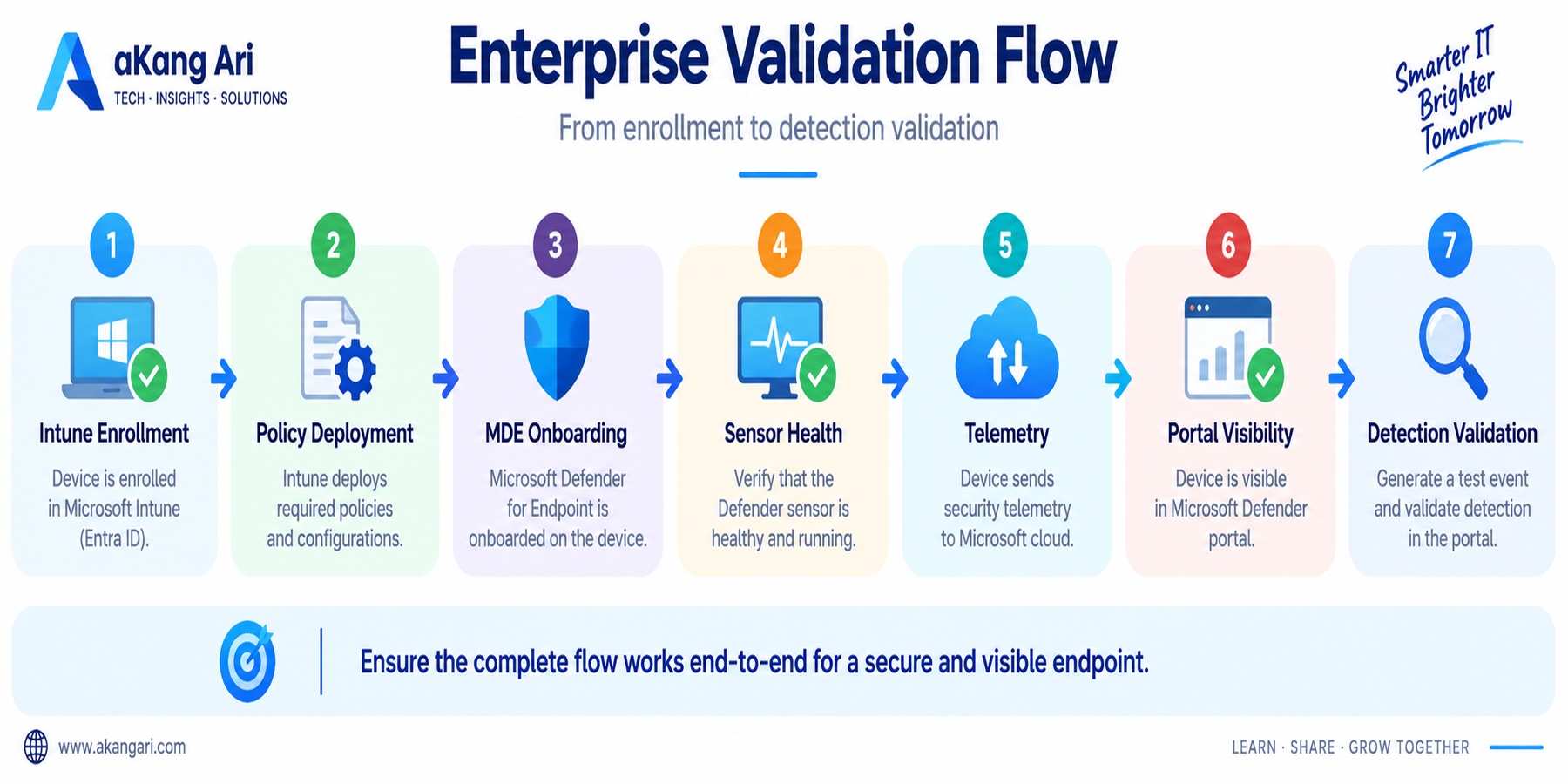
Dengan deployment bertahap, validation yang konsisten, automation, serta monitoring berkelanjutan, organisasi dapat membangun MDE deployment yang lebih reliable dan scalable.
Pada akhirnya, tujuan onboarding bukan sekadar membuat device terlihat di Defender, tetapi memastikan bahwa endpoint benar-benar terhubung, sehat, mengirim telemetry, dan siap digunakan sebagai bagian dari security monitoring organization.
Quick Reference
1. Confirm License
2. Confirm Supported OS
3. Confirm Network Connectivity
4. Confirm Intune Enrollment
5. Create Pilot Group
6. Configure MDE Integration
7. Configure Onboarding
8. Assign Policy
9. Sync Endpoint
10. Check Sense Service
11. Verify Device in MDE
12. Validate Telemetry
13. Perform Detection Test
14. Expand Deployment
15. Monitor Continuously
Key takeaway:
Onboarding is not the finish line. It is the starting point of continuous endpoint visibility, detection, investigation, and response.